
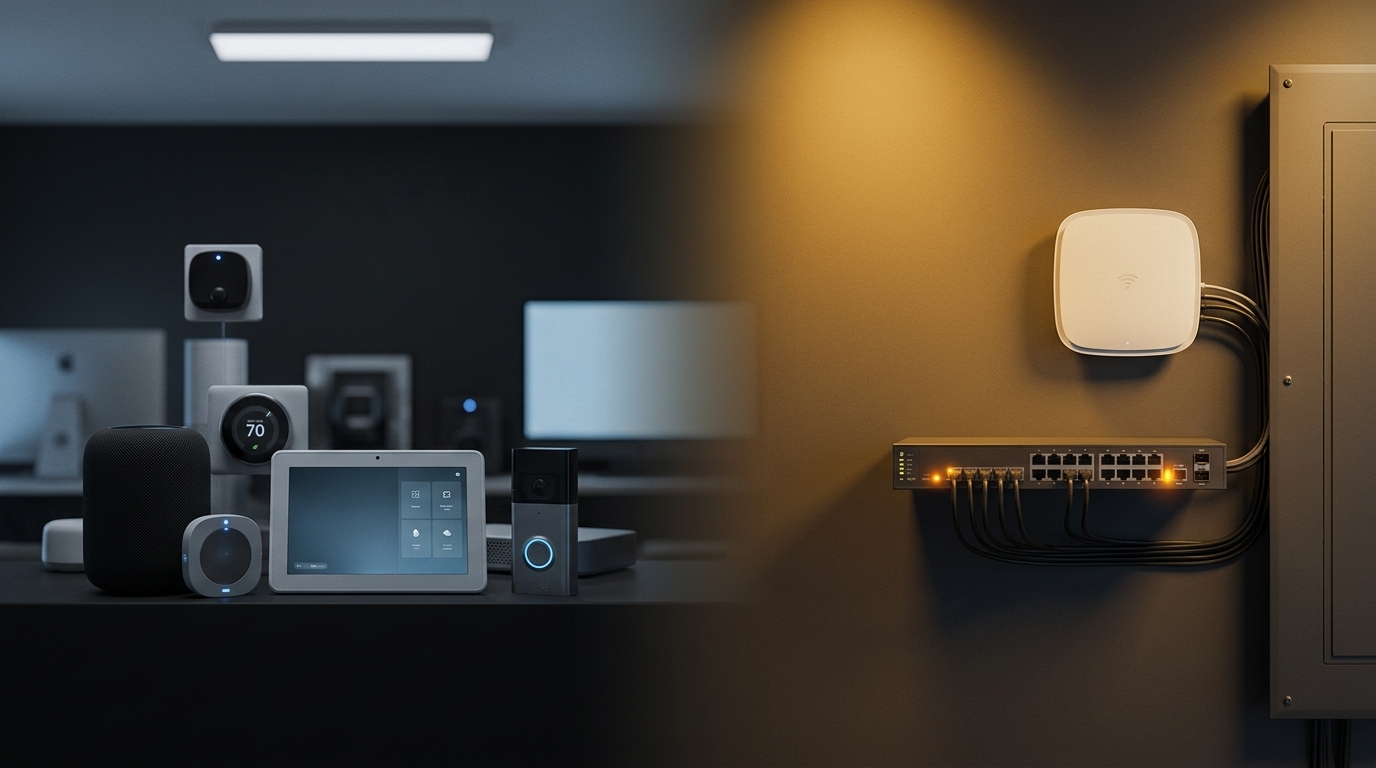
Smart Home Network Security Checklist: 7 Steps for Safer Connections
A smart home network security checklist helps you protect connected devices without making everyday controls unnecessarily difficult to use. Start with supported equipment, secure router settings and protected accounts. Then separate devices where appropriate, restrict unnecessary access, maintain updates and test the functions your household depends on. These measures reduce risk, but no router, Wi-Fi standard or security feature can guarantee complete protection.
Cameras, doorbells, televisions, speakers and automation hubs can connect through different technologies and depend on different services. A reliable design considers those connections before adding more devices or changing network settings.
This guide explains seven practical steps for homeowners, followed by a network-separation comparison, a testing checklist and questions to ask before a professional assessment.
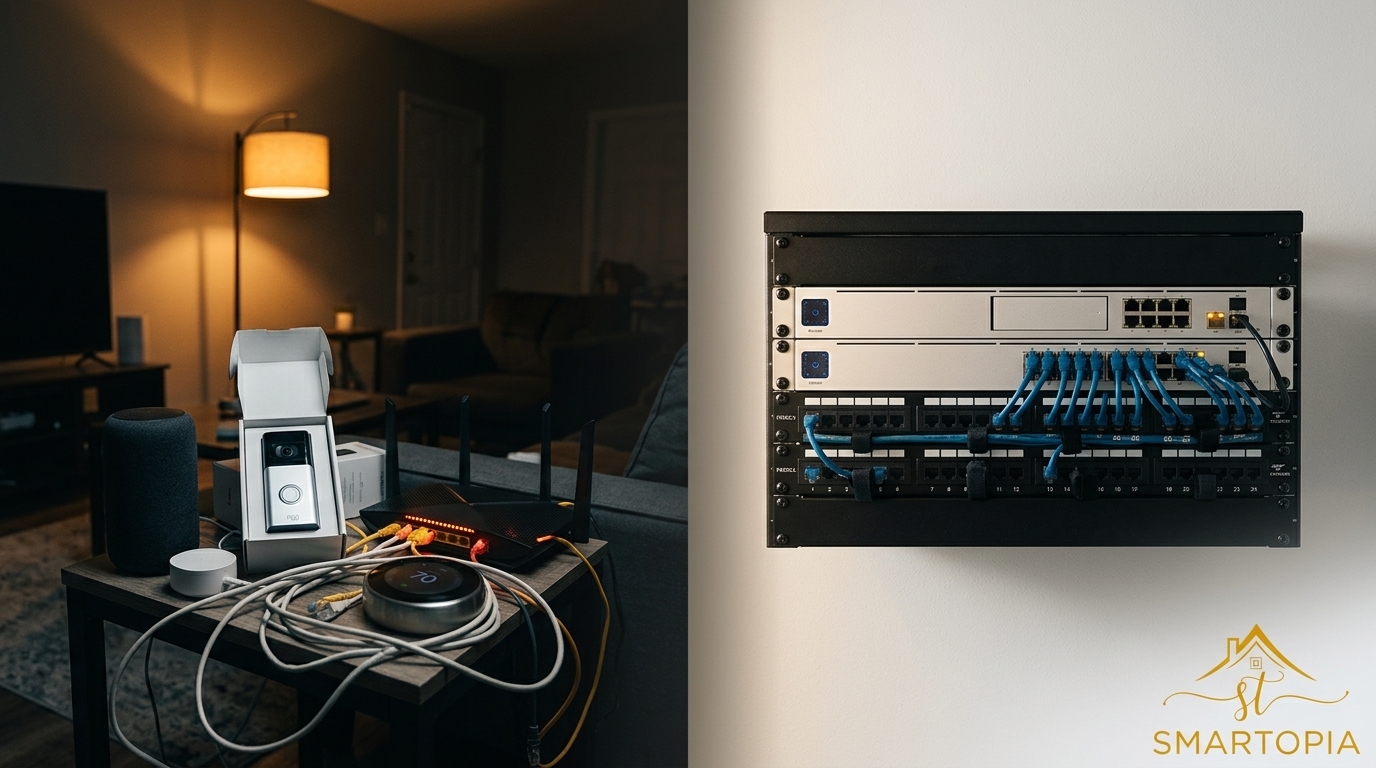
What Does Network-First Smart Home Security Mean?
Network-first planning means reviewing how devices connect, communicate and receive support before expanding the smart home. It starts with the router, wireless coverage, account ownership and access rules, then considers the requirements of individual products.
This approach does not make device security less important. An unsupported camera or compromised cloud account can still create problems even when the home network is carefully configured.
Think of the network, devices and user accounts as connected layers. Each needs appropriate protection, and changes to one layer should be tested against the others.
For the broader design of lighting, shades, climate controls and entertainment systems, explore Smartopia’s home automation solutions in Toronto. This checklist focuses specifically on the connections and access decisions behind those functions.
1. Inventory Devices and Confirm Who Controls Them
Start with a list of connected equipment. Include the internet gateway, router, access points, cameras, recorders, doorbells, smart televisions, speakers, hubs and other connected controls.
For each device, record:
- The manufacturer and exact model.
- Its purpose and location.
- Whether it uses Ethernet, Wi-Fi or a separate hub.
- The account used to administer it.
- Any subscription or cloud-service dependency.
- The available update method and published support information.
Confirm that the homeowner can access the necessary accounts and recovery methods. Installation should not leave essential equipment tied only to an individual technician’s email address.
Not every smart device connects directly to Wi-Fi. Some communicate through a bridge or hub, which then connects to the home network. Include that intermediary equipment in the inventory because it may control several devices.
Before making changes, identify which systems belong to you. A condo resident should not alter building-managed access control, shared networks or common-area equipment as part of a private home-network upgrade.
2. Secure the Router and Its Administration Settings
The router controls important connections between your home and the internet. Review its administration settings separately from the password used to join Wi-Fi.
- Replace any default administrator credentials that remain in use.
- Use a unique administrator password and protect the associated management account.
- Keep router firmware supported and updated.
- Review remote administration and disable it if it is unnecessary.
- Check for old port-forwarding rules and remove entries that are no longer required.
- Back up the working configuration before making significant changes.
If your internet provider manages the gateway, confirm which settings you can change and which require its support. Adding another router without understanding the existing setup can introduce addressing or connectivity problems.
A firewall helps enforce traffic rules. It does not guarantee that every connected device or cloud account is trustworthy. Extra security features are useful only when their scope, configuration and maintenance are understood.
3. Choose Appropriate Wi-Fi Security and Verify Coverage
Use a Wi-Fi security mode supported by both the network equipment and the devices that need to connect. Prefer WPA3-Personal where compatible. WPA2/WPA3 transitional mode may accommodate older devices, while WPA2-Personal with AES may be needed for some supported equipment.
Avoid obsolete options such as WEP and TKIP, and do not disable encryption to solve a connection problem. Apple’s recommended router and access-point settings explain these security options and the importance of current firmware.
Security and coverage are separate requirements. A device can have strong encryption but an unreliable radio connection, or excellent signal strength with poorly protected access.
- Test devices in their installed locations.
- Check the frequency bands each product supports.
- Consider walls, floors, metalwork and nearby networks.
- Verify the connection between access points and the main network.
- Retest cameras, controls and notifications after changing wireless settings.
Wi-Fi 6E is not a prerequisite for a secure smart home. Buying a newer router does not automatically correct weak passwords, unsupported devices or excessive permissions. Choose equipment around compatibility, coverage, capacity and ongoing support.
4. Separate Guests and Smart Devices Where Appropriate
Network separation can limit unnecessary communication between groups of devices. For example, visitors usually need internet access without access to private storage, network administration or household cameras.
A separate IoT network may also be useful, but the design must preserve the connections required by the smart-home platform. A phone may need to discover a speaker, communicate with a controller or reach a local hub.
| Option | Potential use | What to verify |
|---|---|---|
| Guest Wi-Fi | Internet access for visitors | Whether access to the private network and other guests is restricted |
| Dedicated IoT network | Grouping compatible connected-home devices | Whether separation is enforced and required controls still work |
| VLAN-based segmentation | More detailed separation on supported network equipment | Routing rules, firewall policy and permitted cross-network communication |
A different Wi-Fi name does not necessarily create a security boundary. Likewise, a VLAN does not automatically prevent communication with other VLANs. The router or firewall must enforce the intended access rules.
Do not move every smart device to an isolated guest network without checking compatibility. Guest isolation can prevent discovery, casting or local control. Where cross-network access is necessary, allow only the communication required by the installed system and test it carefully.
For shared properties with residents, visitors and building-owned systems, network design requires a broader scope. Smartopia’s building-wide Wi-Fi solutions address connectivity and separation across condo and commercial environments.
5. Protect Accounts and Limit Remote Access
Review the accounts used by cameras, automation apps and network-management services. Use unique passwords and enable multi-factor authentication where available. Remove former users and grant household members only the access they need.
The National Cyber Security Centre’s smart-device safety guidance recommends checking default settings, enabling additional account verification and switching off remote access when it is unnecessary.
For systems you do need to control while away, use the supported access method and understand how it is protected. Avoid exposing device administration pages directly to the internet as a quick fix.
- Confirm who can view cameras or change automation settings.
- Keep account recovery details current.
- Use separate authorised accounts where the platform supports them.
- Review installer or support access after work is completed.
- Revoke access that is no longer required.
A separate IoT network does not protect an account if its password is stolen. Account security and network restrictions address different parts of the risk.
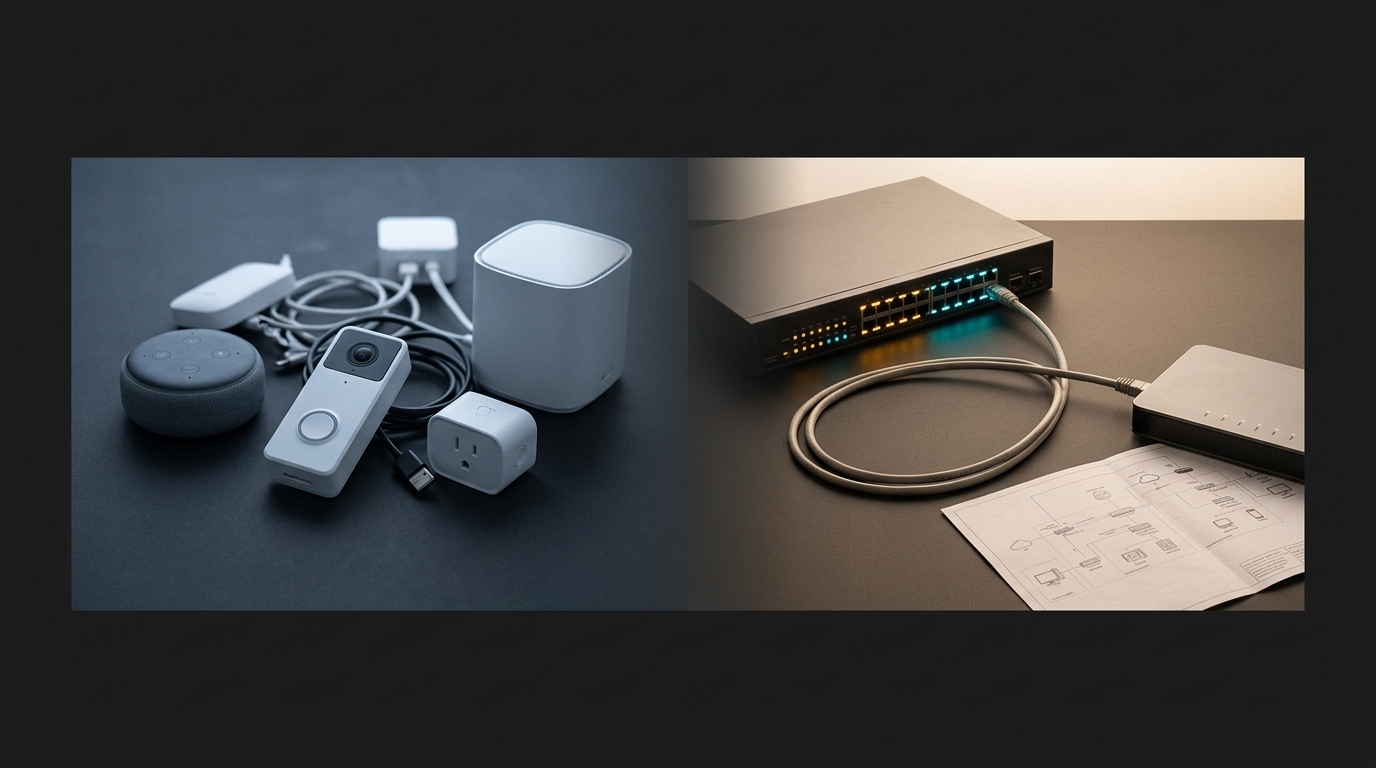
6. Maintain Updates and Plan for Unsupported Equipment
Review how each product receives security updates and how long the manufacturer supports it. Use supported automatic updates where appropriate, and arrange prompt installation when updates require manual action.
For professionally integrated systems, coordinate changes with the responsible support provider so that compatibility is checked and recovery options are understood. Coordination should help updates happen safely, rather than become a reason to leave security fixes unaddressed.
Keep a short change record containing the affected device, update date and any problem observed afterward. This can help identify whether a new issue followed a software change or has another cause.
If a device is no longer supported, assess replacement or removal from the network. Separation may reduce exposure, but it does not repair vulnerabilities in unsupported software.
When selling, replacing or disposing of equipment, follow the manufacturer’s reset and account-removal procedures. Confirm that personal information and linked access have been removed before handing the device to another person.
7. Test Security Changes Against Everyday Use
After changing router settings, network separation or account permissions, test the activities your household actually uses. A device appearing online does not prove that its controls and notifications still work.
- Operate lighting, shades and other supported controls from the intended devices.
- Check camera viewing and recording functions where installed.
- Verify that notifications reach the correct household members.
- Confirm that visitors cannot access private network resources.
- Test remote access through the approved method if it is required.
- Check that former users no longer have access.
- Verify documented local or manual alternatives for important functions.
Understand the difference between losing internet access and losing the local network. Some functions may continue during an internet outage if the required devices, hub and local network remain available. Other features depend on cloud services.
Only test outages in a planned way that does not compromise essential access, alarms or other important household functions. Ask the installer to demonstrate the relevant behaviour during commissioning.
Practical Example: Separating Devices Without Breaking Controls
Illustrative scenario: A household uses laptops, phones, smart speakers, a doorbell and a lighting hub. The owner wants visitors to have internet access while limiting unnecessary communication with private devices. This is a planning example, not a reported Smartopia project.
The network designer first checks which products need local discovery, which depend on a hub and which use cloud services. Visitor access is separated from private resources. Smart-device connections are then grouped according to their actual requirements, with narrowly defined exceptions where supported.
The household tests lighting control, speaker discovery, doorbell notifications and permitted remote access. If a function fails, the team reviews the required communication instead of removing all network restrictions.
The result is a documented setup that balances restricted access with the functions residents need.
Common Smart Home Network Security Mistakes
- Assuming a newer Wi-Fi standard guarantees security: Firmware support, credentials and configuration still matter.
- Treating a second network name as isolation: Confirm the access rules behind it.
- Blocking all local communication: Some products require discovery or communication with a hub.
- Sharing the main administrator account: Use individual authorised access where supported.
- Keeping unused remote access enabled: Remove unnecessary access paths and permissions.
- Ignoring account security: Network settings cannot compensate for every compromised cloud account.
- Leaving ownership undocumented: Know who controls accounts, updates and recovery information.
Security should be maintainable. An unnecessarily complicated design can become difficult to support when equipment changes or a household member needs help.
Your Smart Home Network Security Checklist
Use these questions to review the current setup before purchasing additional devices:
- Do you have an inventory of connected devices and hubs?
- Can you access the relevant administrator accounts and recovery methods?
- Is the router supported and running current firmware?
- Are Wi-Fi encryption and passwords appropriately configured?
- Is visitor access separated from private resources?
- Have any IoT separation rules been tested with the actual smart-home platform?
- Are remote access and user permissions limited to what is needed?
- Is there a process for updates and unsupported equipment?
- Do important functions have tested local or manual alternatives where supported?
- Are configuration changes and support responsibilities documented?
Frequently Asked Questions
What is the first step in securing a smart home network?
List the connected devices, identify who administers them and review the router’s current settings. This establishes which equipment, accounts and connections need attention before you change the design.
Should smart home devices use a guest network?
Sometimes, but only if the guest network supports the required workflow. Isolation can prevent phones, hubs and devices from communicating locally. Check the product requirements and test controls before moving devices.
Do VLANs automatically secure IoT devices?
No. VLANs separate network segments, but access between them depends on routing and firewall rules. They also do not fix weak device passwords, unsupported firmware or compromised online accounts.
Do I need Wi-Fi 6E or Wi-Fi 7 for a secure smart home?
No. A secure setup depends on supported equipment, appropriate encryption, protected accounts, updates and suitable access rules. Choose a Wi-Fi generation based on the devices and performance requirements of the property.
Why did casting or local control stop working after network separation?
The controller and device may no longer be able to discover or communicate with one another. Some products depend on local discovery traffic or same-network operation. Review the manufacturer’s requirements before changing access rules.
Will my smart home work without internet access?
It depends on the products and functions. Some local controls can continue if the local network and relevant hubs remain available, while cloud-based features may stop. Test the installed system instead of assuming all devices behave the same way.
Can an existing smart home be improved without replacing everything?
Often, yes. Supported equipment may remain after reviewing its condition, configuration and compatibility. Prioritise specific weaknesses, such as unsupported devices, unnecessary access or inadequate coverage, before planning wider replacement.
Plan a More Secure and Manageable Smart Home
A smart home network security checklist is most useful when it leads to clear responsibilities and tested changes. Protect the router, accounts and devices together, and verify that the resulting setup still works for the people living in the home.
For condo boards and property managers working with shared amenities or building-owned systems, explore Smartopia’s residential technology solutions.
To discuss your home’s network and automation requirements, contact Smartopia with your device list, router details and current concerns. Those details help define an assessment focused on compatibility, access, coverage and practical day-to-day operation.
Comments are closed