
User-Friendly Smart Home Controls: 7 Ways to Simplify Daily Use
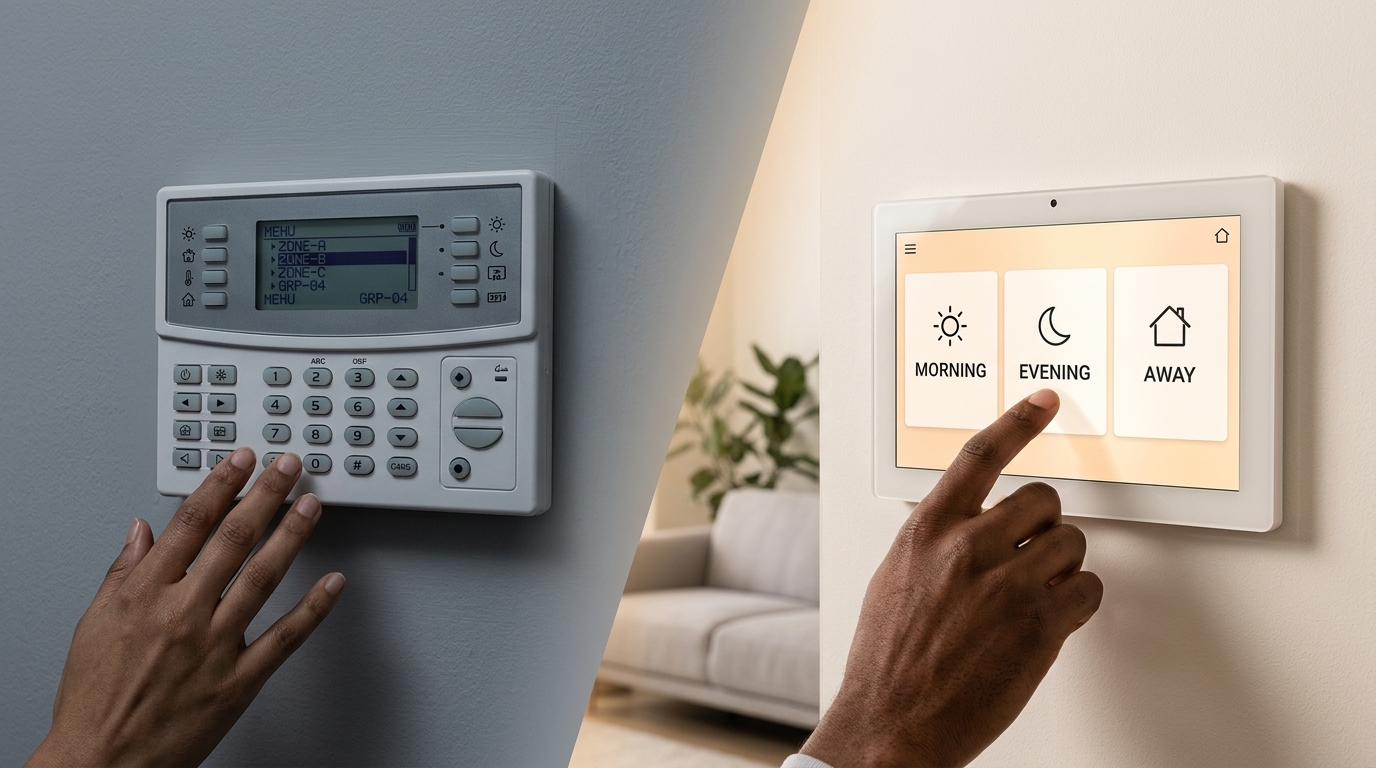
User-friendly smart home controls make everyday tasks understandable without requiring everyone to learn a complicated app. Choose controls around the people using them: practical wall buttons for frequent actions, clearly named scenes, consistent room labels and optional apps or voice commands. Before accepting the system, ask household members and a first-time user to complete common tasks without coaching.
A home can have advanced lighting, motorized shades and connected entertainment while still feeling difficult to operate. The problem may be a confusing label, an inconvenient keypad location or a simple action hidden behind several menus.
This guide explains how to compare control options, simplify daily routines and test whether the finished setup works for the people who live in or visit your home.
What Makes Smart Home Controls Easy to Use?
Easy-to-use controls help someone understand what an action will do, perform it with little effort and recognise the result. They also provide a practical way to adjust or reverse the action when needs change.
For example, a clearly labelled Reading button can be more useful than a screen showing several individually numbered lights. However, the household should still be able to adjust the lighting when the preset does not suit the moment.
Evaluate the complete experience rather than the appearance of a touchscreen. A visually simple interface can still be frustrating if its buttons respond slowly, its labels are unclear or essential settings require an administrator account.
For the wider equipment and installation scope, explore Smartopia’s home automation solutions in Toronto. The focus here is how residents and guests interact with the finished system.
1. Start With Household Tasks and Preferences
List the activities people perform regularly before choosing keypads, remotes or screens. Include the people who are less interested in technology, not just the person organising the installation.
- Turning on lights when entering a room.
- Adjusting brightness for reading or watching television.
- Opening and closing shades.
- Changing the room temperature within the permitted settings.
- Starting entertainment and adjusting volume.
- Preparing the home for bedtime.
Ask each person how they would prefer to perform those actions. Someone may appreciate voice control while cooking but prefer a physical button beside the bed. Another person may want to avoid using a phone for basic room functions.
Record accessibility needs, language preferences and any difficulty with small text, touch gestures or reaching a control. These requirements should influence product selection and placement before installation.
2. Match Each Task to the Right Control Method
No single interface is ideal for every task. A useful combination may include wall keypads, a handheld remote, an app and selected voice commands, with each serving a clear purpose.
| Control option | Useful for | What to check |
|---|---|---|
| Wall switch or keypad | Frequent room actions and familiar access for guests | Placement, readable labels, tactile feedback and controller dependencies |
| Handheld remote | Television, entertainment and volume control | Button layout, charging or battery needs, and access to common functions |
| Touchscreen | Multiple rooms, device status and more detailed adjustments | Text size, navigation, viewing angle and the number of steps required |
| Mobile app | Personal preferences, schedules and supported remote access | Account permissions, compatibility and availability when the phone is absent |
| Voice control | Optional hands-free actions | Recognition, background noise, privacy preferences and service dependencies |
| Scheduled or sensor-based automation | Predictable routines that need little interaction | Triggers, exceptions, manual adjustments and how to pause the routine |
Try the actual interface before approving it. A product demonstration should include everyday adjustments, correcting a mistake and returning to a familiar state.
Keep frequently used functions easy to reach. An app can add flexibility without becoming the only practical way to turn on the room lights.
3. Use Clear Room Names and Scene Labels
Name rooms and actions using words the household already uses. If everyone calls a room the Living Room, do not label it Lounge in one interface and Family Area in another.
A scene applies a predefined combination of settings. Its name should communicate the intended result, and its programmed actions should match what residents expect.
| Unclear label | Clearer alternative | What to define |
|---|---|---|
| Scene 1 | Reading | Which lights change and the intended brightness |
| Zone 03 | Kitchen | The devices included in the room group |
| AV Macro | Watch TV | The display, source and audio behaviour |
| Night | Bedtime | Which rooms are affected and which functions remain unchanged |
| Off | Living Room Lights Off | The exact scope of the command |
Broad names need particular care. An All Off action should not unexpectedly interrupt equipment that residents expect to remain available.
Start with a small set of useful scenes. Add more only when they solve a repeated need rather than creating additional choices that nobody remembers.
4. Keep Navigation Consistent and Show Useful Feedback
Use the same room names, action labels and basic navigation patterns across compatible interfaces. People should not need to learn a different logic for each touchscreen or app page.
Keep daily controls separate from advanced configuration. Residents may need to adjust a shade or temperature setting without accessing network configuration, automation programming or account administration.
- Place common actions prominently.
- Group related functions by room or activity.
- Provide an obvious way to return to the main screen.
- Distinguish an unavailable device from one that is simply switched off.
- Show confirmation for actions where the result is not immediately visible.
Where the system supports actual device feedback, use it to show the reported state. If the controller only sends commands without receiving confirmation, avoid presenting an assumed result as a verified status.
The W3C guidance on accessible interface design highlights readable contrast, consistent navigation, clear labels and identifiable feedback. These are useful principles when evaluating digital home-control interfaces, although a product’s accessibility still needs to be assessed in its actual use.
5. Plan for Guests and Different Access Needs
A visitor should be able to perform basic room tasks without installing an app or receiving the household’s main account password. Clearly labelled local controls are often useful for guest bedrooms, bathrooms and shared living spaces.
Test control placement and readability with the intended users. A keypad can look suitable on a drawing but be awkward to reach from a seated position or difficult to identify in evening lighting.
- Choose labels that remain readable under normal room lighting.
- Avoid relying only on colour to communicate an important state.
- Check whether buttons and touch targets suit the user’s dexterity.
- Keep an alternative to voice commands for people who cannot or prefer not to use them.
- Explain essential guest-room functions on a short instruction card if needed.
Separate convenience from administrative access. Visitors may need lighting and shade controls without permission to change schedules, view cameras or edit household settings.
For account permissions and network access, see the smart home network security checklist.
6. Define Manual Adjustments and Offline Behaviour
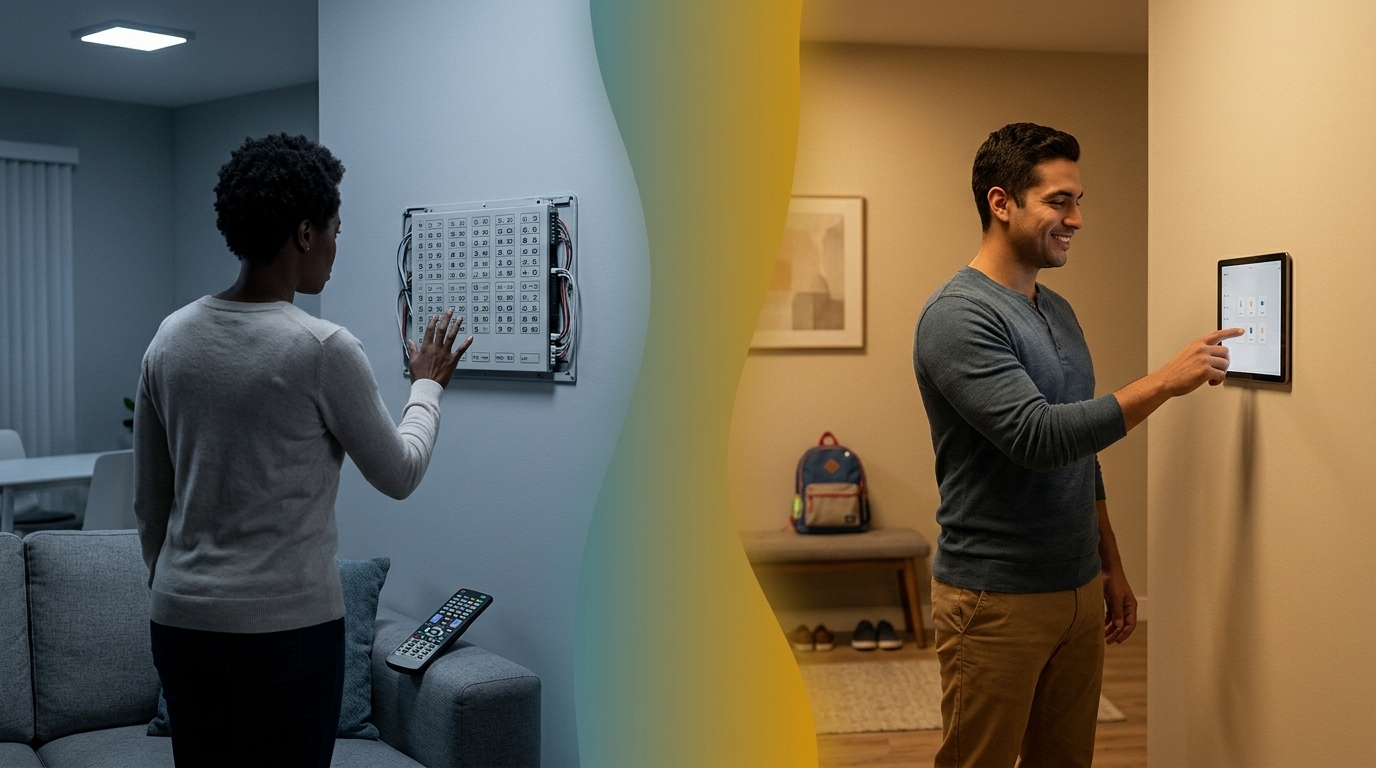
Automation should respond predictably when someone changes a setting. If a resident dims the lights manually, they should understand whether a schedule or sensor will change them again and when that will happen.
For each important routine, agree:
- What starts the automation.
- Which devices and rooms it affects.
- How a person can adjust or pause it.
- How long a manual adjustment remains active.
- What restores the normal routine.
Also confirm what happens if the internet, local network, hub or controller becomes unavailable. These are different failures, and the effect depends on the installed products and their configuration.
A physical keypad does not automatically guarantee independent operation. Some keypads depend on a central processor or network. Ask the installer to demonstrate the functions that remain available under the agreed failure scenarios.
Security, access and other essential systems should follow their approved operating procedures. Do not assume a general household scene can safely replace their dedicated controls.
7. Run a First-Time User Test Before Handover
Ask a household member who did not help design the system, or an appropriate first-time user, to complete several ordinary tasks. Observe without immediately explaining where each control is located.
- Turn on the room lights.
- Adjust the lighting for reading.
- Open or close the shades.
- Start the intended television or music source.
- Adjust the volume.
- Reverse an accidental selection.
- Return the room to its normal state.
Record hesitation, wrong selections and requests for help. Those observations reveal whether labels, placement or navigation need revision.
Agree on acceptance criteria that fit the household. For example, a guest should be able to operate essential room lighting without app registration, and residents should be able to change a scene setting using the intended controls.
Repeat the affected tasks after revisions. Installer familiarity is not the same as successful use by the household.
Practical Example: Making a Living Room Easier to Control
Illustrative scenario: A household has connected lights, shades, a television and an audio system, but residents use separate apps and struggle to remember the correct sequence. This is a design example, not a reported Smartopia client project.
The team identifies three repeated activities: everyday lighting, reading and watching television. It creates clearly named controls for those activities and keeps direct access to lighting brightness, shade position and volume.
The Watch TV scene activates only the agreed equipment and settings. Residents can still adjust lighting without restarting the scene. A visitor tests the local controls, while the household checks that ending the television session does not unexpectedly switch off unrelated room functions.
The improvement comes from consistent behaviour and clear choices, rather than adding more scenes or another screen.
Common Mistakes That Make Smart Home Controls Frustrating
- Choosing hardware before discussing routines: The interface may not suit the tasks people perform most often.
- Using technical names: Device numbers and programming terms make ordinary actions harder to recognise.
- Creating too many overlapping scenes: Residents may not understand the difference between them.
- Relying on one person’s phone: Other household members lose convenient access when that person is away.
- Making voice control the only option: Noise, recognition or personal preference can make it unsuitable.
- Allowing automations to override people unexpectedly: Unclear priorities make the system feel unpredictable.
- Skipping household testing: A successful technical demonstration can still leave everyday usability problems.
What Should the Installer Provide at Handover?
Request concise instructions that match the installed system. A household guide should explain the controls people actually use, with technical documentation available separately for authorised support.
- A room-by-room list of controls and their functions.
- Scene names and the actions included in each scene.
- Instructions for manual adjustments and pausing routines.
- Confirmed behaviour during relevant outages.
- Account ownership and access arrangements.
- Battery or charging requirements for portable controls.
- The support contact and process for requesting changes.
After residents have used the system in ordinary daily life, review confusing labels or routines that do not match their habits. Keep changes documented so the interface and instructions remain consistent.
Frequently Asked Questions
What are user-friendly smart home controls?
They are controls that let intended users complete ordinary household tasks with clear labels, predictable behaviour and manageable effort. They should also provide practical ways to adjust settings and recover from mistakes.
Are wall keypads better than mobile apps?
They serve different purposes. Wall keypads can provide convenient access to frequent room actions, while apps can offer detailed settings and supported remote access. The best combination depends on the household and installed system.
Should every smart home use voice control?
No. Voice control can be useful as an additional option, but it may not suit every person or situation. Keep an appropriate alternative for important daily functions.
How many smart home scenes should I create?
There is no ideal number for every home. Begin with a small set based on repeated activities. Add a scene when its purpose is clear and the household can distinguish it from existing options.
Can guests use smart home controls without an app?
Yes, if the system includes suitable local controls. Clearly labelled switches, keypads or remotes can support essential room functions without sharing administrator credentials.
Will physical controls work without internet access?
Some will, but this depends on the equipment and system architecture. A control may still require a local hub, processor or network. Ask for a demonstration of the actual installed behaviour.
Can an existing system become easier to use without replacing everything?
Often, yes. Clearer labels, revised scenes, simpler menus or better control placement may help where the platform supports those changes. Assess the current system before deciding which equipment needs replacement.
Choose Smart Home Controls Around the People Using Them
User-friendly smart home controls should make familiar tasks easier to understand and perform. Start with household routines, choose suitable interfaces and verify the result with residents and guests before completing handover.
If your current system feels confusing, or you are planning a new installation, contact Smartopia to discuss your smart home controls. Share the rooms involved, existing equipment and the actions people find difficult so the assessment can focus on practical improvements.

Comments are closed