
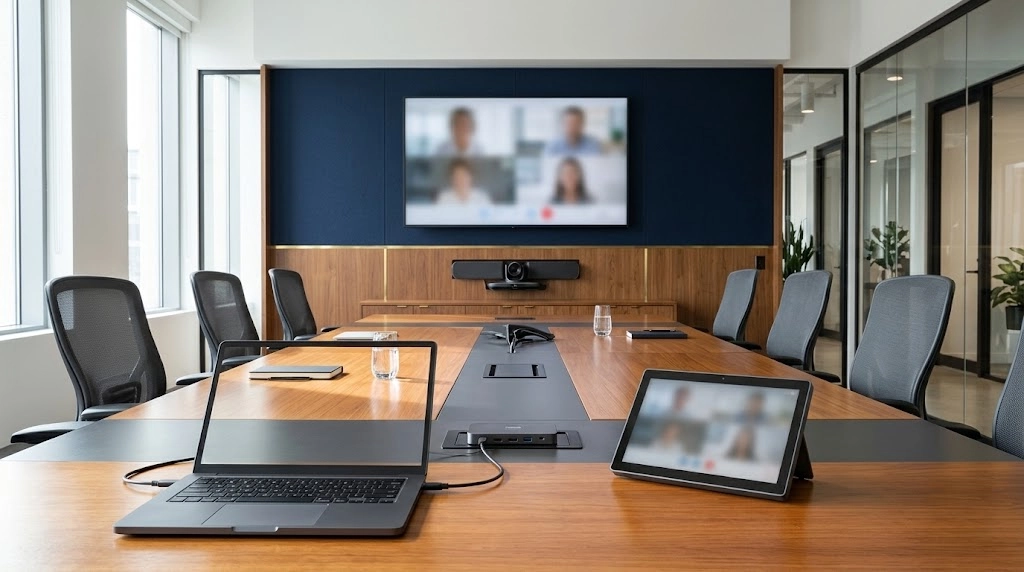
BYOD vs Microsoft Teams Rooms: Which Setup Is Right for Your Meeting Room?
Choose BYOD when meetings should run from the host’s laptop using the room’s shared camera, microphones, speakers and display. Choose Microsoft Teams Rooms when your organisation wants a dedicated room system with a consistent Teams meeting workflow. A compatible design can also provide native Teams meetings alongside a separate laptop connection.
The BYOD vs Microsoft Teams Rooms decision starts with how people use the space: who hosts meetings, which platforms they need, what guests can connect and who supports the equipment. Room size alone does not settle the choice.
This guide helps office managers, IT teams and facilities teams compare both approaches before requesting a design or quotation. For equipment, installation and room assessment in Toronto and the GTA, explore Smartopia’s conference room AV solutions.
What Is a BYOD Meeting Room?
A bring-your-own-device meeting room uses a participant’s laptop to run the meeting application. Shared room equipment supplies the camera, microphones, speakers and display through a supported connection.
The host opens the meeting on their laptop, connects to the room and confirms the correct audio and video devices. The laptop remains responsible for the meeting application, account access and any required permissions.
- Useful flexibility: different hosts can use approved meeting applications on their own computers.
- Connection requirements: some systems use separate USB and display connections; others provide a supported single-cable arrangement.
- User responsibility: someone must bring a compatible device and know how to connect it.
BYOD is also described as BYOM, or bring your own meeting, when the emphasis is on running the host’s chosen conferencing application. Manufacturer terminology varies. Logitech’s BYOD mode guidance illustrates why connection arrangements depend on the actual room hardware.
What Is Microsoft Teams Rooms?
Microsoft Teams Rooms is a dedicated meeting-space solution. A room system runs the meeting experience instead of requiring the host’s laptop to run every call. The installation typically combines a certified room system, controller and suitable AV peripherals.
Users can join a scheduled meeting from the room interface when the invitation and room configuration support that workflow. Microsoft describes native capabilities such as one-touch joining in its meeting room guidance.
Plan the room’s identity as well as its equipment. Microsoft’s resource account documentation explains how room accounts support calendar processing and device sign-in.
For procurement, specify the room platform, supported equipment and required features together. Windows and Android implementations can differ; a familiar product name does not establish every capability. Ask the supplier to demonstrate the workflow your organisation intends to use.
BYOD vs Microsoft Teams Rooms: Side-by-Side Comparison
Use this table to frame a requirements discussion. It compares the typical operating models; the final design, licensing and supported features still need verification.
| Decision point | BYOD room | Microsoft Teams Rooms |
|---|---|---|
| Meeting host | The participant’s laptop runs the application. | The dedicated room system runs the native meeting. |
| Starting a meeting | Connect the laptop, open the meeting and check device selection. | Use the configured room interface and joining workflow. |
| Platform flexibility | Depends on the laptop’s applications, permissions and compatible peripherals. | Native Teams operation, with supported third-party joining or a separately designed laptop option. |
| Support boundary | Includes room equipment and the host’s device. | Includes room equipment, room accounts and the deployed platform. |
| Budget items | AV equipment, connectivity, installation, user software and support. | AV equipment, room system, installation, room licensing and support. |
| Guest experience | Requires an approved connection that works with the visitor’s device. | Requires a suitable invitation, joining method or supported laptop workflow. |
The comparison is most useful when you test the same meeting scenario on both designs.
When Should You Choose Each Setup?
For BYOD vs Microsoft Teams Rooms, start with the most frequent meeting rather than the most unusual one. Then identify exceptions that the room still needs to handle.
- Consider BYOD: hosts already work from managed laptops, use several approved platforms and can follow a simple connection procedure.
- Consider Teams Rooms: the organisation primarily uses Teams and wants users to follow a familiar room-based joining process.
- Consider both: routine meetings use Teams, while visiting presenters need a tested laptop connection for other applications.
These are planning scenarios, not client case studies. A small client-facing room may need a dedicated system because different employees use it throughout the day. A larger workshop space may prioritise laptop flexibility because trainers bring different tools.
Document who should be able to start a meeting unaided. That requirement often provides a clearer design brief than labels such as “premium boardroom” or “small huddle room”.
How Do Costs and Licences Compare?
Compare the complete installed scope over the same planning period. A laptop-based design may avoid a dedicated room computer, but cameras, microphones, displays, cabling, installation and support remain part of the budget.
Microsoft currently offers Teams Rooms Basic and Pro. Basic provides eligible certified systems with core capabilities at no additional licence cost, subject to its conditions and organisational limit. Pro includes additional meeting and management capabilities. Review the current Teams Rooms licensing requirements; an ordinary user subscription should not be assumed to license a dedicated shared room system.
BYOD software costs depend on the chosen services. Microsoft’s Teams Shared Space licensing covers particular shared-space functions, including eligible BYOD room management scenarios. Basic laptop connectivity and optional room-management services are separate requirements.
Request itemised quotations covering equipment, labour, configuration, recurring licences, training and maintenance. Confirm Canadian pricing and applicable terms when ordering.
What Compatibility Checks Matter Before Buying?
The BYOD vs Microsoft Teams Rooms choice will not fix unsuitable camera coverage, weak microphone pickup or an untested connection path. Ask for an equipment schedule that identifies exact models and supported configurations.
- Host devices: test the Windows and macOS models people actually use, including managed guest devices where permitted.
- Connections: confirm what the selected USB-C port, cable, dock and room interface carry: video, USB data and charging are separate capabilities.
- Room coverage: check the view and audio from every occupied seat.
- Feature support: verify the required display arrangement, camera behaviour and presentation workflow.
For Teams Rooms procurement, use Microsoft’s certified systems and peripherals list. Certification addresses specified hardware requirements; it does not establish support for every feature or cloud environment.
Include the complete cable route in the assessment. A successful demonstration with a short tabletop cable does not validate a different installed extension path.
Can One Room Support Teams Rooms and BYOD?
Yes, when the selected equipment supports an appropriate switching or passthrough design. A room can offer native Teams operation for routine calls and allow a laptop to use shared AV equipment for another meeting.
As a manufacturer example, the Logitech Extend datasheet describes BYOD passthrough for specified Android-based room configurations. This is evidence for those supported arrangements, not a promise that any Teams room accepts any USB connection.
Separate two functions in the specification: sharing a laptop presentation into a room meeting and running the entire meeting from the laptop. Demonstrate both if you need both.
Teams Rooms can also join supported third-party meetings through Microsoft’s documented joining options. Capabilities and prerequisites vary; consult the third-party meeting guidance. Test your actual external meeting workflow, including content sharing, before accepting the design.
Who Will Manage and Support the Room?
Include ownership in your BYOD vs Microsoft Teams Rooms assessment. A room can have suitable equipment and still become difficult to use when nobody owns updates, account access or recurring faults.
- IT: assign responsibility for approved applications, network access, device policies and relevant accounts.
- AV support: identify who handles camera, microphone, display, control and cabling issues.
- Facilities: coordinate physical access, room changes and furniture layouts.
- Users: provide short instructions and a visible support contact.
For a laptop-led room, agree how support handles a visitor’s computer without changing its security settings. For a dedicated system, record who can administer the room and approve configuration changes.
Keep an inventory, approved configuration record and fault log. Smartopia’s managed AV support and maintenance options provide a starting point for discussing coverage, escalation and ongoing responsibilities. Confirm the actual service scope in writing.
How to Prepare a Meeting Room Requirements Brief
Use these four steps to prepare a brief for your IT team or integrator before buying equipment. Keep the document specific enough that different suppliers can quote against the same needs.
- Record the room and users. Note dimensions, seating, display locations, usual occupancy and whether staff, visitors or trainers host meetings.
- List meeting workflows. Identify required platforms, laptop types, guest access, content sharing and the joining method users should follow.
- Record infrastructure and ownership. List existing equipment, connection routes, network constraints, account administrators and support contacts.
- Define acceptance and budget scope. Write the tests the finished room must pass and request separate costs for installation, licences, training and ongoing support.
Add photographs and a simple seating plan where available. For a BYOD vs Microsoft Teams Rooms quotation, ask each supplier to identify assumptions, exclusions and equipment proposed for reuse. This makes differences between quotations easier to assess.
What Should You Test Before Handover?
Accept the room against real meeting tasks. Ask a representative employee to use it while someone outside the room checks the remote experience.
| Test | Evidence to record |
|---|---|
| Normal meeting start | The intended host can start or join using the documented procedure. |
| Audio and camera coverage | Remote participants can hear and see people at the required seating positions. |
| Presentation sharing | Required content reaches both local and remote participants. |
| Laptop compatibility | Each agreed device type works through the installed connection path. |
| Mode change, if specified | Laptop operation ends cleanly and the native room workflow is restored. |
| Support handover | Instructions, account ownership, configuration records and escalation contacts are supplied. |
Record unresolved faults and the agreed correction owner before signing off. After handover, use the meeting room AV checklist for routine readiness checks.
BYOD vs Microsoft Teams Rooms: Frequently Asked Questions
Is a laptop running Teams the same as Microsoft Teams Rooms?
No. A laptop can run a Teams meeting using connected room equipment, but Microsoft Teams Rooms is a dedicated room solution with its own supported hardware, configuration and room licensing requirements.
Is BYOD always cheaper than Microsoft Teams Rooms?
No. Costs depend on room equipment, connection hardware, installation, software, training and ongoing support. Compare itemised proposals for the same room requirements and planning period.
Can Microsoft Teams Rooms join Zoom or other external meetings?
Supported third-party joining options are available, but their requirements and features vary. Confirm the selected room platform, configuration and required content-sharing workflow before purchasing.
Does every USB-C cable support a BYOD meeting room?
No. The laptop port, cable and room interface must support the required combination of USB data, video and any charging function. Test the complete installed connection with the intended computers.
Can an existing room support both BYOD and Teams Rooms?
Sometimes. Reuse depends on the equipment’s compatibility, condition and supported switching or passthrough options. Assess the existing installation and test both operating modes before committing to an upgrade.
How should a business choose between BYOD and Teams Rooms?
Compare the usual meeting platforms, hosts, guest requirements, connection process, support responsibilities and complete cost. Test representative meetings and select the design that meets the documented requirements.
Plan Your Meeting Room with Smartopia
To resolve BYOD vs Microsoft Teams Rooms for your workplace, bring a seating plan, equipment list and examples of the meetings the room must support. Include laptop models, guest requirements and any recurring difficulties.
Smartopia’s conference room AV services cover room assessment, system design, conferencing equipment, installation and commissioning for Toronto and GTA workplaces. Contact Smartopia to discuss your meeting room requirements and request a scope based on the space, users and supported workflows.
Official Technical References
- Microsoft Learn: Meeting room guidance for Teams
- Microsoft Learn: Resource accounts for Teams Rooms and panels
- Microsoft Learn: Teams Rooms licences
- Microsoft Learn: Teams Shared Space licensing
- Microsoft Learn: Certified systems and peripherals
- Microsoft Learn: Third-party meetings on Teams Rooms
- Logitech: BYOD mode in CollabOS
- Logitech: Extend datasheet
Comments are closed