
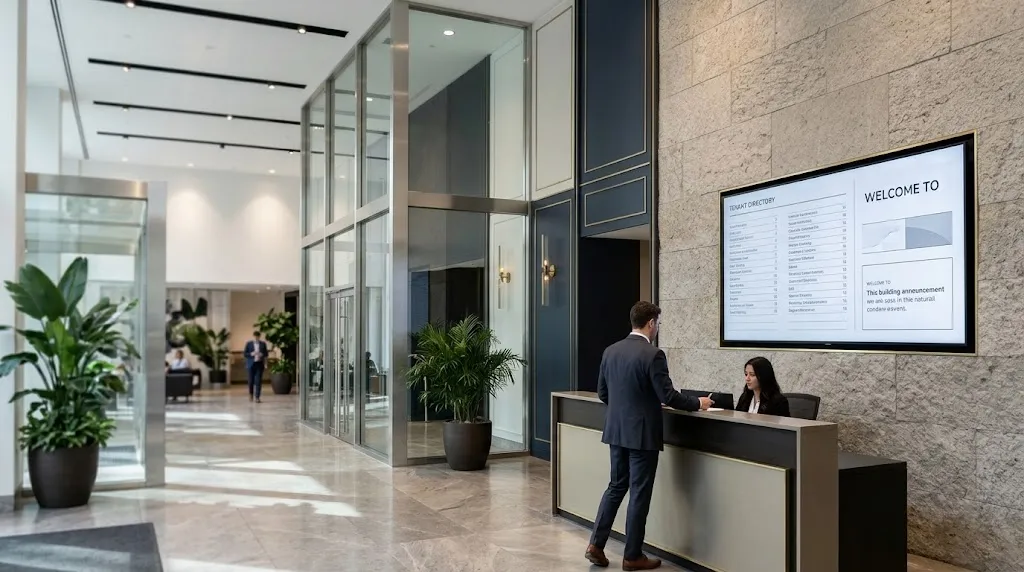
A reception display might answer “Where should I check in?” A showroom screen might explain the differences between two products. A residential lobby display might tell residents which amenity is temporarily unavailable. Each screen needs a clear communication purpose and an assigned content owner.
This guide explores digital signage examples for businesses across different property types, with practical suggestions for content, publishing and measurement. All scenarios are illustrative planning examples, rather than descriptions of completed Smartopia projects or verified customer results.
Useful digital signage content includes welcome messages, directories, product comparisons, current promotions, meeting availability, maintenance notices and approved operational updates. Start with one audience and one communication need. Then choose a readable layout, assign responsibility for updates and define how you will assess whether the information is useful.
Digital Signage Examples for Businesses: What Can Screens Display?
Businesses can display information that helps people find a destination, understand a product, follow a procedure or respond to a current notice. Content should be selected for the location rather than filling every screen with the same playlist.
| Screen Location | Digital Signage Example | Question It Answers | Suggested Content Owner |
|---|---|---|---|
| Office reception | Welcome message and check-in instructions | Where should I go when I arrive? | Reception or office administration |
| Meeting-room entrance | Room name and approved availability information | Is this the correct room, and is it available? | Authorized calendar administrator |
| Retail display area | Product comparison or captioned demonstration | Which option suits my needs? | Product or store manager |
| Condo lobby | Confirmed maintenance and amenity notices | What building activity affects me? | Property management |
| Multi-tenant building entrance | Tenant directory and reception directions | How do I reach my destination? | Building administration |
| Staff-only area | Approved operational updates and training reminders | What do I need to know for my work? | Relevant department manager |
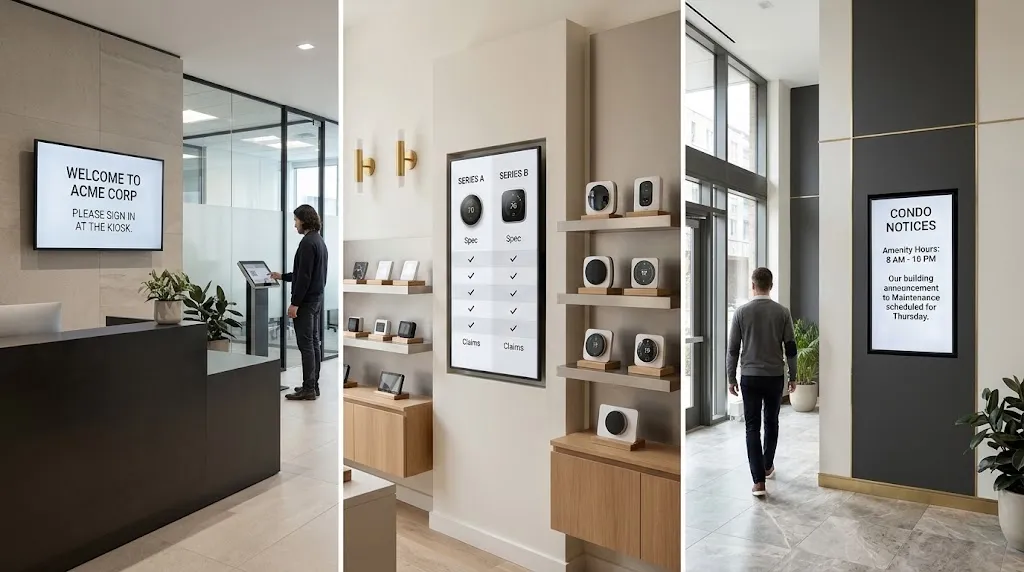
The right digital signage examples for businesses also depend on viewing time. Someone walking past a corridor screen may only read a short instruction. A visitor waiting in reception may have time for a brief sequence of messages.
Before planning digital signage for a Toronto property, identify the audience, the intended message and the viewing conditions. These decisions provide a clearer basis for selecting screen size, position and content-management requirements.
Digital Signage Examples for Office Buildings
Office digital signage should help visitors navigate the building and give employees information relevant to their location. Public-facing displays and staff-only screens need separate content rules.
Reception and Visitor Welcome Messages
A reception display can show the organization’s name, opening hours, reception location and check-in instructions. For a shared office building, an approved directory can identify tenants and their floors.
Illustrative message: “Welcome. Please check in at reception before proceeding to your meeting.”
This example gives the visitor a clear next action. If reception is temporarily unattended, publish the approved alternative procedure and contact method. Review public messages before including visitor names, meeting details or other personal information.
Meeting-Room Availability
A meeting-room display can show the room name and availability where the selected platform supports an appropriate calendar connection. Confirm the account permissions and information that may be displayed.
For example, a company may choose to show “Available” or “Reserved” without publishing meeting subjects or attendee names. Consistent room names should appear on the display, calendar and booking instructions.
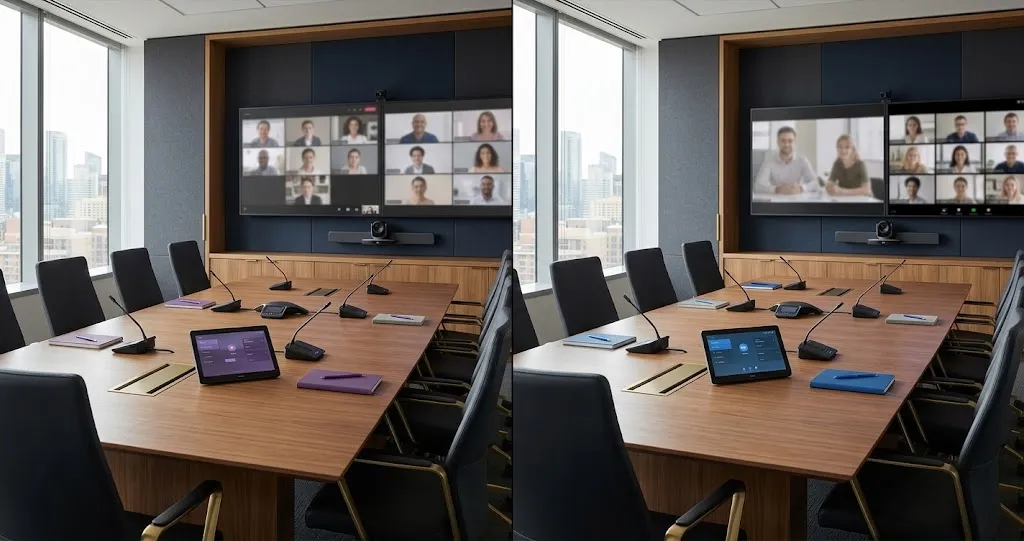
Coordinate scheduling displays with the organization’s conference-room technology so that users can identify and operate each space consistently.
Internal Announcements and Operational Information
Staff-area screens can show training dates, workplace updates, service interruptions and approved operational summaries. Restrict sensitive information to screens visible only to the intended audience.
Where a display uses a live data feed, include a refresh time or another clear indication of data freshness. Define what appears if the feed becomes unavailable.
Retail and Showroom Display Ideas
Retail screens can help customers compare options, understand a product or find assistance. The strongest content relates to the products or services near the display.
Captioned Product Demonstrations
A short demonstration can explain a product feature, show how a control works or illustrate a configuration that is difficult to communicate through a static label.
For example, a showroom screen could show how different settings change a demonstration system. Keep essential explanations visible as text so that the content remains understandable when audio is muted.
Use accurate product information and media the business has permission to display. Remove demonstrations when the featured model or specification changes.
Side-by-Side Product Comparisons
Practical digital signage examples for businesses in retail include comparisons focused on a few relevant differences. Depending on the product, these might include dimensions, intended use, included accessories or supported features.
A customer-facing comparison should help someone choose a direction for further discussion. Detailed specifications can remain available through staff, printed information or an accessible webpage.
Promotions, Collection Instructions and Service Messages
Promotional screens should state the offer accurately and include the relevant conditions and expiry information. Assign a person responsible for checking that displayed availability and pricing remain current.
Other useful messages include collection locations, consultation instructions and where to request help. If a QR code is included, describe the destination and provide an alternative route to the information.
Condo Lobby and Residential Building Examples
Residential signage should help residents understand building activities, shared-space availability and management procedures. Notices need enough detail for residents to act without exposing unnecessary personal information.
Maintenance and Service Notices
A maintenance notice should identify:
- The affected area, entrance or service.
- The confirmed date and expected time window.
- Any action residents need to take.
- The approved contact for questions.
- When the notice was last updated.
Illustrative message: “The gym is temporarily closed for scheduled maintenance. Please contact building management for the latest reopening information.”
When the schedule changes, update the screen and the building’s other relevant communication channels. Remove the notice when it no longer applies.
Amenity Information
A screen near a shared room can show opening hours, booking instructions and current restrictions. The main lobby screen can carry a shorter building-wide summary.
Check that booking information matches the system residents actually use. A notice directing residents to an outdated portal can create confusion even when the display itself is working correctly.
Community and Management Updates
Approved events, management contact details and concierge hours can support routine communication. Establish an approval process for community submissions and avoid displaying resident names, unit numbers or delivery details without an appropriate basis.
Smartopia’s article on digital signage and tenant experience discusses the wider property-communication context. Building screens can also be considered alongside other residential technology systems.
Wayfinding, Directories and Visitor Information
Wayfinding content should tell people where they are, where their destination is and which step to take next. Accuracy and placement are more important than a visually elaborate map.
Place Information at Decision Points
A directory near an entrance helps visitors select a destination. A directional display near an elevator bank or corridor junction can then confirm the route.
Use consistent destination names across directories, room signs, meeting invitations and reception instructions. Review the route from the visitor’s perspective rather than assuming they know the property.
Keep Maps and Routes Current
A useful map should show the viewer’s location, relevant destinations and clear directions. Check that its orientation makes sense from the display’s position.
Confirm any route described as accessible and review temporary restrictions. Construction, locked doors and unavailable equipment can affect the route people should follow.
Support Visitors Who Need Assistance
Interactive directories need understandable navigation and a clear way to return to the main screen. Essential directions should also be available through an appropriate alternative, such as reception or an accessible webpage.
Assign responsibility for tenant moves, room-name changes and temporary closures so that directory information has a reliable source.
Emergency and Time-Sensitive Messages
Digital signage can carry approved urgent notices as part of a property’s communication arrangements. Its role, limitations and publishing authority should be defined before an incident occurs.
Keep signage coordinated with the building’s established emergency procedures and required notification systems. A general-purpose content display should not be relied on to replace required alarms or other life-safety provisions.
Set Publishing Authority and Message Priority
Define who may publish urgent messages, which screens receive them and how routine content is interrupted where the platform supports that function.
A prepared template can identify the affected location, approved instruction, responsible source and update time. Instructions must match the actual situation and the property’s approved response.
Test Delivery and Recovery
Confirm how the selected equipment and platform behave during internet loss, local network faults, player failures and power interruptions. These events can affect different parts of the system.
Test how a priority notice is published, checked, removed and replaced with normal content. A successful publishing action in the software does not confirm that every physical screen displayed the message.
Provide Suitable Supporting Channels
Some people may be away from the screen or unable to read it. Include suitable accessible information and supporting channels in the organization’s communication arrangements.
Digital Signage Examples for Businesses With Multiple Screens
Multiple screens need a clear publishing structure. Group displays by location and audience, then define which content is shared and which messages remain specific to one site.
Separate Shared Content From Local Updates
A business could use a shared template for brand information while giving an authorized local manager permission to publish site-specific notices. The actual permission structure depends on the selected content-management system.
For example, a maintenance notice for one property should reach the affected screens without appearing at unrelated locations.
Assign an Owner, Approval Route and Expiry
| Content Type | Owner | Review or Update Trigger |
|---|---|---|
| Building directory | Property administration | A confirmed occupancy or location change |
| Retail offer | Approved marketing or store manager | Offer launch, availability change or expiry |
| Maintenance notice | Facilities or property management | Schedule confirmation, change or completion |
| Meeting availability | Authorized calendar administrator | A booking change or connection problem |
| Urgent operational message | Designated authorized staff | A verified event and approved instruction |
Before publishing, check the message against five questions:
- Who needs this information?
- Which screens should show it?
- Who has approved its accuracy?
- When should it change or expire?
- Who checks that it appears correctly?
Use Templates That Fit Each Display
Create layouts for the actual display orientation and viewing conditions. A portrait directory and a landscape reception display may need different arrangements of the same information.
Where supported, use scheduling and automatic expiry for temporary messages. Define what happens when a feed fails, a player loses its connection or a screen requires replacement.
Confirm Infrastructure and Account Responsibilities
Check player compatibility, software licences, account ownership, administrator permissions and update procedures. The network design should support the equipment and functions included in the project.
Fixed screens may require planned power and network connections. Consider these requirements alongside the property’s structured cabling infrastructure.
Accessibility and Readability Considerations
A readable signage layout uses clear wording, suitable text size, strong contrast and enough viewing time. Test it on the installed display under the lighting and viewing conditions people will actually experience.
Check Distance, Glare and Layout
- Make essential text legible from the intended viewing position.
- Keep important information away from detailed background images.
- Use a clear visual order for the heading, message and next action.
- Check glare at relevant times of day.
- Allow comfortable reading time before a slide changes.
- Keep essential directions easy to find throughout the content loop.
There is no single text size or slide duration suitable for every property. The layout needs to reflect screen size, viewing distance, message length and audience needs.
Make Messages Understandable Without Sound or Colour Alone
Use captions or visible explanations for information delivered through video. A viewer should be able to understand the essential message when the sound is muted or difficult to hear.
Pair colours with clear words or symbols. A red background does not explain which area is closed, when the restriction applies or what someone should do next.
Provide Appropriate Alternatives
Important information may need to be available through staff assistance, an accessible webpage or another suitable format. A QR code should supplement the message rather than become the only way to obtain essential details.
W3C accessibility principles provide useful guidance on making digital content easier to perceive and understand. Physical signage also needs assessment of its position, viewing conditions and intended users. Design choices alone do not establish that an installation meets every applicable accessibility requirement.
How to Measure Whether Signage Is Useful
Measure signage against its communication purpose. Choose a baseline, observe a relevant outcome and record other changes that could influence the result.
When reviewing digital signage examples for businesses, distinguish between publishing content, displaying it and a person seeing or acting on it. These are different events.
| Communication Goal | Possible Measure | Interpretation Limit |
|---|---|---|
| Help visitors navigate | Repeated direction questions at reception | Visitor numbers, staffing and other signs can affect the result |
| Support a product enquiry | Relevant enquiries or use of a campaign-specific link | Other promotions and staff activity may influence enquiries |
| Communicate a maintenance notice | Repeat questions and feedback about the notice | Fewer questions do not prove that everyone understood the message |
| Keep displayed information accurate | Expired notices, incorrect details and failed feeds | Content accuracy does not measure audience attention |
| Check scheduled playback | Available player reports and physical screen checks | Playback records do not prove that a person viewed the content |
Record a Baseline Before Changing Content
For example, reception staff could record common visitor questions before introducing clearer directory content. Review a comparable period afterwards and note changes in occupancy, visitor numbers or reception procedures.
This provides a more useful assessment than assuming that a new screen caused every change in enquiries or visitor behaviour.
Change One Element and Review It
If a notice is not helping, check its placement, wording, size and intended action. Make a focused change and review the same measure again.
A clearer heading, shorter instruction or more suitable location may be more relevant than adding animation or increasing the amount of content.
Choose Examples That Your Team Can Maintain
The most practical digital signage examples for businesses combine a clear audience, accurate information and manageable publishing responsibilities. Start with messages your team can keep current, then expand the content plan when there is a defined need.
Smartopia provides digital signage and video wall services in Toronto and the GTA. Share your property type, screen locations and communication requirements to discuss a suitable project scope.
Frequently Asked Questions
What should a business display on a lobby screen?
Useful digital signage examples for businesses with a lobby include reception instructions, a directory, opening hours and current service notices. Prioritize information visitors need when they arrive. Keep essential directions visible and review any personal or confidential details before publication.
How often should digital signage content change?
Update content when its information changes or its purpose expires. Meeting availability may change throughout the day, while a directory changes when an occupant moves. Assign an owner and review trigger to each content type, and use automatic expiry for temporary notices where the platform supports it.
Can multiple locations use one content management system?
Yes, a content management system can serve multiple locations when the selected platform, licences and compatible players support that arrangement. Confirm location-based publishing permissions, connectivity requirements and offline behaviour. Shared templates can support consistency while authorized staff manage local updates.
When is a video wall more suitable than a standard display?
A video wall may suit a large viewing area or content that needs a larger visual canvas. A standard commercial display may be sufficient for a directory or routine notices. Assess viewing distance, content detail, ambient light, available space, maintenance access and budget before choosing either option.

Comments are closed