
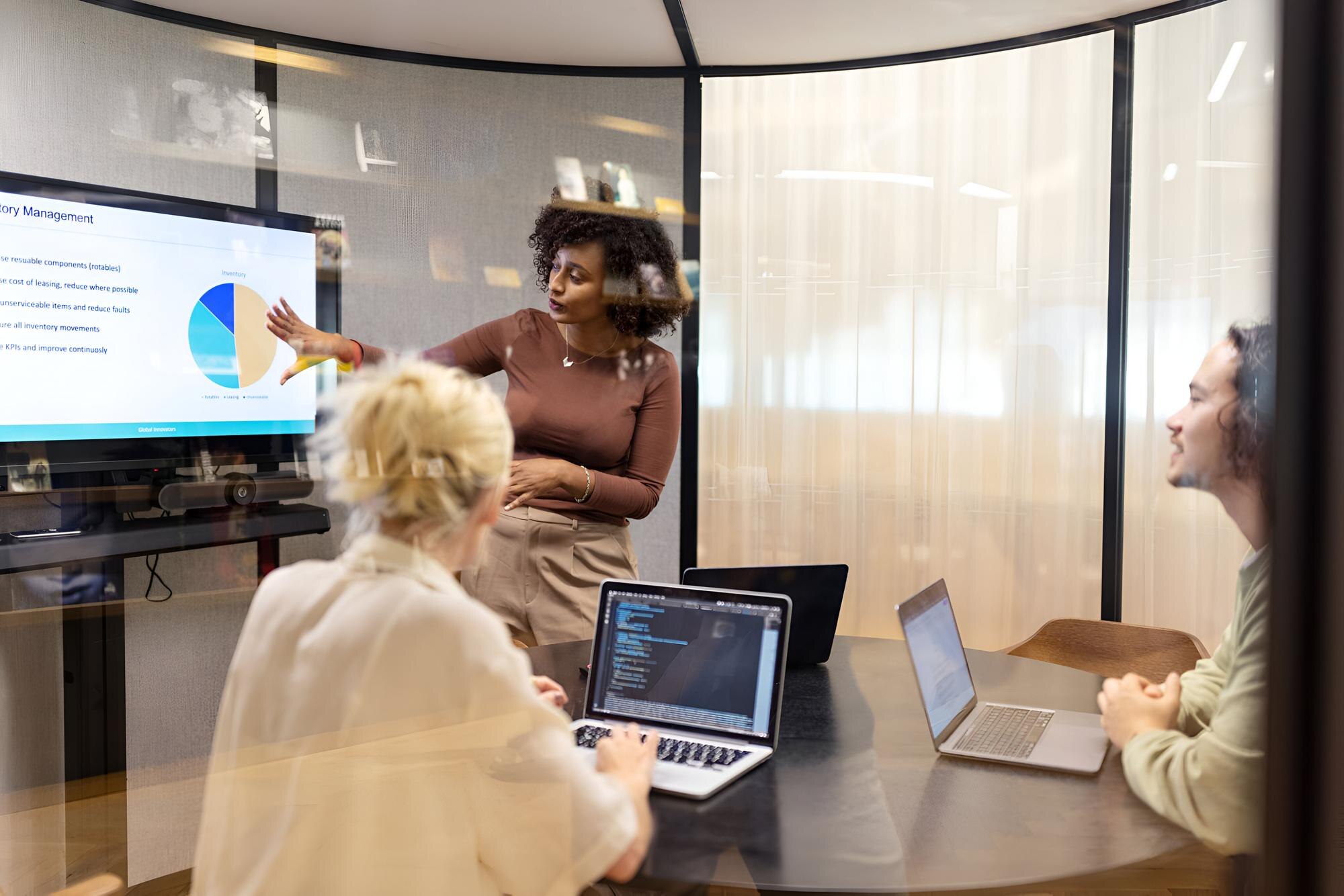
A room can sound acceptable to people sitting around the table while remote participants hear distant voices, background noise or echo. Similarly, a camera preview may look clear on the room controller but leave people at the far end of the table difficult to identify.
This guide explains ten practical steps for evaluating an existing hybrid meeting room AV setup. It covers room conditions, equipment configuration and acceptance testing, helping office managers, facilities teams and IT staff define useful improvements.
What Does Hybrid Meeting Room AV Optimization Involve?
Hybrid meeting room AV optimization is the process of assessing and adjusting the room, equipment and meeting workflow so in-person and remote participants can communicate effectively. It may involve repositioning devices, correcting audio settings, improving room conditions or resolving network and platform issues.
Equipment replacement is one possible outcome, but it should follow an assessment. A misplaced microphone, an incorrect audio route or an unsuitable camera angle may require a different solution from an unsupported device or an undersized system.
1. Establish a Baseline Before Changing Equipment
Begin with a test meeting that includes someone outside the room. Use the normal conferencing platform, typical seating positions and the kinds of content employees regularly present.
- Ask participants to speak from each intended seat at a normal conversational level.
- Check whether remote attendees can identify speakers and follow discussion.
- Share a presentation, a spreadsheet and any other common content.
- Test meeting join, mute, volume and source-selection controls.
- Record whether faults affect one platform, one laptop or every meeting.
Document the room layout, selected devices, software versions and observed symptoms. Repeat the same checks after changes so the team can compare results rather than relying on impressions.
2. Assess Room Acoustics and Background Noise
Hard surfaces can reflect speech around a room, making words less distinct. Background noise from ventilation, nearby conversations or equipment can also compete with the speaker’s voice.
Listen with the room operating normally. A quiet test with ventilation switched off may not represent the conditions employees experience during meetings.
- Identify persistent noise sources and discuss appropriate corrective work.
- Review reflective walls, ceilings, glazing and table surfaces.
- Assess whether acoustic treatment is needed and where it should be placed.
- Recheck the room after furniture or occupancy changes.
Sound-absorbing treatment and sound isolation address different problems. Treatment can reduce reflections within a room; it does not automatically prevent sound passing through doors, walls or ventilation paths. Material selection and installation should suit the building and the acoustic problem.
3. Match Microphone Coverage to the Seating Layout
Microphone selection should follow the room’s seating positions, dimensions and use. An integrated conferencing device may suit a compact room, while a larger or flexible space may need separate microphones.
Tabletop, ceiling and front-of-room microphones can each be appropriate. Their performance depends on placement, distance, room conditions and the supported coverage of the selected product.
For hybrid meeting room audio, test the least favourable positions: the far end of the table, side seats and any standing presentation area. Ask the remote participant whether speech remains understandable without people raising their voices.
Beamforming and noise processing can assist voice capture, but they do not remove the need for suitable placement and room acoustics. Also check microphone mute behaviour and confirm that users can identify whether the room is muted.
4. Check Speaker Coverage, DSP and Echo Cancellation
People in the room need to hear remote participants at a comfortable level across the seating area. Increasing the volume at one loudspeaker may leave nearby seats too loud while distant seats remain difficult to hear.
Digital signal processing, or DSP, can manage functions such as audio routing, microphone mixing, level adjustment and acoustic echo cancellation. These functions may be built into the conferencing equipment or provided by a separate processor.
Acoustic echo cancellation addresses remote audio that plays through the room loudspeakers and is picked up by the microphones. Its configuration must match the system’s signal routing. It is different from treating reverberation caused by reflections within the room.
A qualified technician should verify the processing arrangement against the equipment and conferencing platform requirements. Test normal conversation, interruptions and simultaneous speech in both directions.
When several people join the same meeting from laptops inside the room, use the agreed room-audio workflow. Additional active laptop microphones and speakers can create unwanted audio paths.
5. Verify Camera Framing, Sightlines and Lighting
Camera resolution alone does not determine whether remote participants can follow a discussion. Placement, field of view, subject distance and lighting also affect the result.
Check the remote participant’s view with the room occupied. Confirm that people at the table edges remain visible and that nearby participants do not block those seated behind them.
- Choose framing that suits the room’s width and depth.
- Position the camera to support a natural viewing angle where practical.
- Check faces for strong backlighting, shadows and glare.
- Test blinds or lighting scenes under typical daytime conditions.
- Assess any presenter area separately from seated discussion.
Automatic framing, speaker tracking and multiple cameras are options for specific needs. Test these features with real discussion before relying on them; frequent or inappropriate switching may distract remote attendees.
6. Test Display Readability From Every Seat
A display that works for video calls may still be unsuitable for detailed spreadsheets or technical drawings. Evaluate the content employees actually use, from the furthest intended viewing position.
Check text size, screen height, viewing angle and reflections. Ask whether participants can follow shared content while also seeing remote attendees when the meeting requires both.
A second display may help separate people and content, but its usefulness depends on the room layout and platform capabilities. Confirm that the selected system supports the required arrangement.
Include accessibility needs in the assessment. Where captions or other supported features are required, check that they are enabled, understandable to users and visible from the relevant seats.
7. Assess Network Performance During Real Meetings
Audio interruptions and frozen video do not always originate in the AV equipment. Network congestion, packet loss, jitter and latency can affect meeting quality.
Review platform diagnostics and network conditions during the periods when problems occur. An internet speed test alone does not describe the complete route between the room and the meeting service.
- Check the room’s wired or wireless connection and supported deployment requirements.
- Review concurrent calls and other traffic during busy periods.
- Confirm platform requirements for firewall, proxy and network access.
- Investigate recurring issues by room, location and time.
Quality of Service, or QoS, can prioritize eligible real-time traffic on network segments where it is correctly implemented. It does not create additional bandwidth or guarantee treatment across the public internet.
Coordinate changes with the IT team using the conferencing platform’s current network guidance. Keep cloud conferencing traffic requirements separate from any local AV distribution requirements.
8. Validate the Conferencing Platform and Room Workflow
Dedicated room systems and laptop-based conferencing have different operating requirements. Confirm which workflow the organization expects users to follow.
A dedicated room deployment may require room accounts, compatible peripherals, appropriate licences and calendar configuration. A bring-your-own-device workflow depends on supported laptop connections, device selection and user permissions.
Test the organization’s primary meeting platform and any required external meeting services. Joining another platform as a guest may provide different features from a native meeting experience.
For a consistent hybrid meeting room AV setup, keep everyday controls clear: join, share, mute, adjust volume and end the meeting. Verify room booking information and provide short instructions for normal use and approved fallback options.
9. Test Wired and Wireless Content Sharing
Content sharing should be assessed as a complete workflow. A laptop appearing on the room display does not prove that remote participants can see it or hear its audio.
- Test supported company laptops and typical guest devices.
- Confirm whether wireless sharing requires software, permissions or network access.
- Check content delivery to both the room display and remote attendees.
- Test shared video audio separately from microphone audio.
- Verify adapters, cables and the supported capabilities of USB-C or HDMI connections.
- Confirm how users stop sharing and disconnect.
Provide a documented wired alternative where the design requires one. Wireless compatibility varies by device, operating system, network policy and presentation platform; avoid assuming that every visitor can connect in the same way.
10. Complete Acceptance Tests Before Returning the Room to Service
Hybrid meeting room AV improvements should finish with documented tests of the agreed functions. Run them with both in-room and remote participants, using the normal layout and operating conditions.
| Function | What to verify |
|---|---|
| Meeting join | An authorized user can start or join the required meeting through the documented workflow. |
| Outgoing speech | Remote participants can understand normal speech from each intended speaking position. |
| Incoming speech | Remote voices are understandable at comfortable levels across the seating area. |
| Conversation | Both sides can exchange speech without disruptive echo or repeated cut-outs under the tested conditions. |
| Camera coverage | Required seats and presentation areas are visible with suitable framing and lighting. |
| Shared content | Required content and its audio reach the intended local and remote destinations. |
| Controls | Mute, volume, source selection and meeting-end functions behave as documented. |
| Recovery | Approved restart or fallback procedures work and support responsibilities are recorded. |
Record the test date, configuration, results and unresolved issues. Agree on project-specific acceptance criteria before testing; a short successful demonstration does not establish performance under every future condition.
Common Hybrid Meeting Room AV Problems and What to Check
Use this table to guide investigation. Each symptom can have more than one cause, so these are starting points rather than confirmed diagnoses.
| Reported problem | Useful checks |
|---|---|
| Remote attendees cannot hear some seats | Microphone coverage, distance, selected input, mute status and room noise. |
| Remote attendees hear themselves | Additional active audio devices, routing and echo-cancellation configuration. |
| Speech sounds distant or reverberant | Room reflections, microphone placement and the direct speech level reaching the microphone. |
| Video or speech breaks up intermittently | Platform diagnostics, network conditions, device performance and connection stability. |
| People look dark or difficult to identify | Backlighting, exposure, framing, subject distance and camera placement. |
| Content appears locally but not remotely | The selected sharing method, platform controls, input routing and content permissions. |
Frequently Asked Questions
What should we check first when improving hybrid meeting room AV?
Start with a test call involving a remote participant. Check speech from every intended seat, incoming audio, camera coverage and shared content. Record the symptoms before changing settings or buying equipment.
Do all hybrid meeting rooms need ceiling microphones?
No. Microphone choice depends on the room, seating positions, acoustics and intended use. Integrated, tabletop and ceiling solutions can each be suitable when their supported coverage and installation requirements match the space.
Can DSP fix poor room acoustics?
DSP can assist with audio processing, but it cannot replace appropriate room conditions and microphone placement. Excessive reflections or persistent noise may require acoustic or building-related improvements alongside system adjustments.
Is a separate DSP required for every meeting room?
No. Some conferencing devices include the processing needed for their supported configurations. More complex microphone, loudspeaker or routing arrangements may require additional processing. Follow the selected system’s design requirements.
Will a faster internet connection fix choppy meetings?
It may help if insufficient capacity is the cause. Other causes include packet loss, jitter, wireless conditions, device issues and network configuration. Review diagnostics before selecting a remedy.
Does every boardroom need AV over IP?
No. AV over IP may suit projects requiring flexible distribution between several sources and destinations. A simpler room may use direct connections. Assess routing needs, network requirements, compatibility and support complexity before choosing the architecture.
Can existing meeting room equipment be retained?
Potentially. Check its condition, supported interfaces, manufacturer support and compatibility with the required workflow. Retain equipment that meets the agreed requirements and passes the relevant acceptance tests.
Plan Improvements for Your Existing Meeting Rooms
Prepare a room inventory, a list of recurring problems and examples of the meetings employees need to run. These details help distinguish configuration changes from work involving acoustics, networking or equipment replacement.
For design or installation requirements, explore Smartopia’s conference room AV services. For maintenance responsibilities and incident handling, read the guide to long-term technology support.
Contact Smartopia to discuss the room layout, existing equipment, conferencing platform and issues affecting your Toronto or GTA workplace.

Comments are closed