
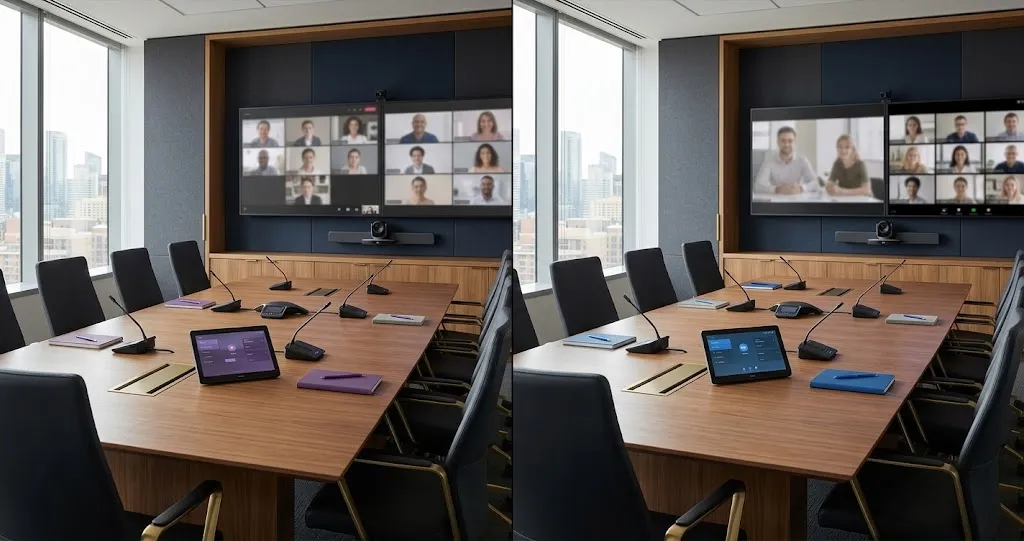
As a planning rule, start by evaluating Teams Rooms where Teams dominates everyday collaboration, and Zoom Rooms where Zoom is the usual meeting platform. Then test that starting point against guest calls, room equipment, IT requirements and total operating cost. Neither choice removes the need for good audio, clear controls and a tested handover.
What Are Microsoft Teams Rooms and Zoom Rooms?
Microsoft Teams Rooms brings a dedicated Teams meeting experience into a shared space using a room system, display, audio, camera and controls. Microsoft’s supported configurations include Windows and Android systems. The room needs a Teams Rooms licence; an employee’s Microsoft 365 subscription is not a substitute. Microsoft’s Teams Rooms licensing guide explains the supported arrangements.
Zoom Rooms provides a dedicated shared-room environment for Zoom conferencing and presentation. Depending on the configuration, it uses a supported appliance or computer, room controller and connected AV equipment. See Zoom’s getting-started guide for Zoom Rooms for the deployment requirements.
Both should be evaluated as complete room systems. Simply connecting a webcam to a television does not establish the booking workflow, microphone coverage, support process or consistent user experience a shared room needs.
Who Uses Each Platform Best?
Review a representative sample of recent meetings before choosing. Separate meetings your staff host from those organized by customers, suppliers and partners. Then identify which activities need the fullest meeting experience, such as training, collaborative reviews or executive presentations.
| Your working pattern | Start by evaluating | Confirm before deciding |
|---|---|---|
| Most meetings are hosted in Teams | Microsoft Teams Rooms | The required room licence, equipment and external-meeting workflow. |
| Most meetings are hosted in Zoom | Zoom Rooms | Calendar integration, room management and occasional Teams participation. |
| Staff use Microsoft 365 but hold most calls in Zoom | Both, using the actual meeting mix | Booking convenience separately from the preferred meeting platform. |
| Clients regularly host on several platforms | Both, with a cross-platform pilot | Presentation, display and control requirements for each connection method. |
These are evaluation priorities, not automatic winners. A company can have an excellent internal setup and still struggle if its busiest client-facing room is poorly suited to external calls.
For example, consider an office where employees book through Outlook, host internal reviews in Teams and regularly present to a client that uses Zoom. Evaluate the internal meeting workflow and the client presentation separately. If cross-platform joining handles the client’s requirements, one room standard may be practical. If essential presentation functions are missing, assess a supported alternative before buying. This is a planning example, not a reason to purchase two systems by default.
Meeting Join and Guest Experience
Assess the whole sequence from booking to leaving the room. A successful test includes finding the reservation, joining the correct call, hearing remote participants, sharing a document and ending the meeting without leaving private information behind.
Run the test with someone who did not install the system. Ask them to complete these everyday tasks:
- Join a scheduled meeting from the room controls.
- Present from a company laptop and a permitted guest laptop.
- Mute the room and confirm the control state is clear.
- Join an external invitation and follow any admission process.
- Return the room to its normal state for the next group.
Record where users hesitate. A confusing cable, unreadable display or missing booking can interrupt the experience before the conferencing software becomes relevant. Establish a clear procedure for laptop audio when several people bring devices into the room.
Define an approved fallback for an unsupported meeting or service interruption. That might be a tested laptop connection, where the selected hardware supports it. Staff should know the fallback before a client presentation begins.
Calendar, Scheduling and Account Requirements
A Teams Rooms installation uses a dedicated Microsoft 365 resource account with the appropriate Teams Rooms licence. The room’s mailbox supports scheduling, and users invite that resource when booking. IT should establish ownership and naming rather than signing the room in as an employee. Microsoft’s resource-account guidance explains the distinction.
Zoom Rooms can also use Microsoft 365 room calendars. With an authorized calendar integration, employees can reserve the room through Outlook and see upcoming meetings on the room system. Microsoft 365 therefore does not require a company to choose Teams Rooms. Zoom documents the process in its Office 365 calendar integration guide.
For either deployment, agree who manages booking permissions, calendar access, time zones, cancellations and external invitations. Test a changed meeting time and a forwarded client invitation. The booking must reach the correct room with enough information for the intended joining method.
Cameras, Microphones, Displays and Room Controls
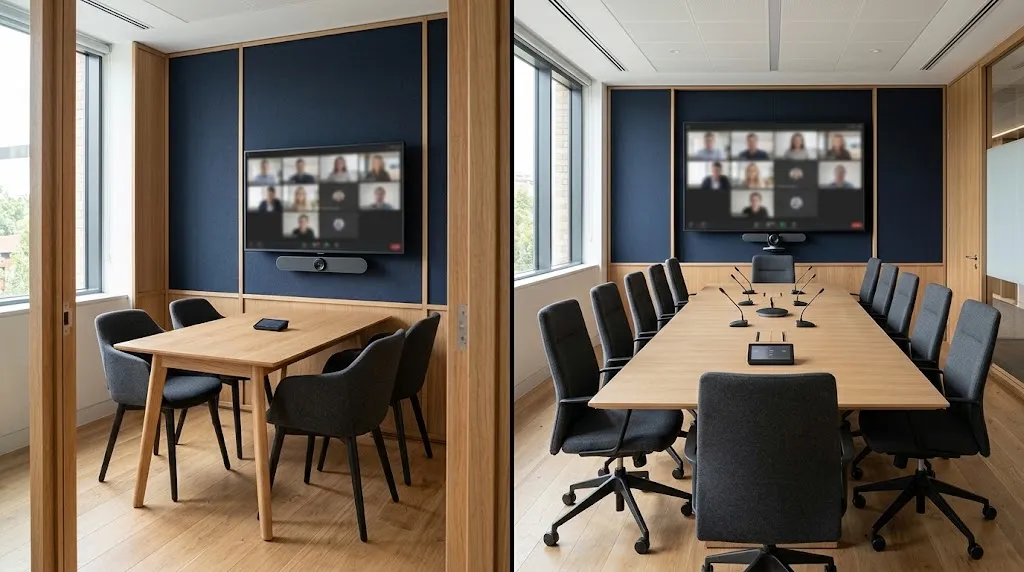
Choose equipment around seating positions, room depth, acoustics and presentation needs. A room with glass walls and a long table presents different challenges from a compact enclosed meeting space. Changing the platform alone will not resolve poor microphone placement or an unsuitable camera position.
- Cameras: Check views of every regular seat, including people close to the display.
- Microphones: Test quiet speakers, far-end seats and normal background noise.
- Speakers: Check intelligibility throughout the room and listen for echo on a remote call.
- Displays: Check text readability, sightlines and the intended participant-and-content layout.
- Controls: Put everyday functions where users can find them, with clear labels.
Verify the exact device model, operating system, firmware and supported peripherals before ordering. Zoom’s Rooms feature matrix shows that capabilities differ across platforms. Teams Rooms features also depend on the selected system and licence. Do not assume equipment can change platforms without a compatibility review.
Where lighting, shades or other equipment need integration, include those interfaces in the design brief. Smartopia’s conference room AV installation service covers the wider room system, including conferencing, audio and controls.
Joining Meetings Hosted on Other Platforms
A Teams Room can join supported Zoom meetings through Direct Guest Join or a supported SIP connection. Direct Guest Join uses a web-based experience; Microsoft’s documented SIP route has different requirements, including Teams Rooms Pro and a paid SIP dialling plan. These methods offer different capabilities. For example, Microsoft’s comparison lists HDMI content sending for SIP but not Direct Guest Join. Review the current third-party meeting guidance against the selected device.
A supported Zoom Room can join Teams meetings through Teams web-client interoperability or supported SIP/CVI arrangements. The web-client route has limitations around displays, peripherals and content sharing. SIP arrangements have their own service requirements and do not reproduce every Teams feature. Zoom’s Teams interoperability guide details these differences.
Before accepting an interoperability proposal, demonstrate these tasks with a real external invitation:
- Join the meeting under the host organization’s admission rules.
- Send presentation content from the room and receive content from a remote participant.
- Check required display layouts, microphone behaviour and camera selection.
- Verify any essential chat, whiteboard, recording or meeting-control workflow.
A working video connection is only part of the acceptance test. Document the supported workflow and any extra service costs.
IT Management, Updates and Security
Assign responsibility for the room after installation. Someone needs to receive alerts, maintain access, approve changes and investigate faults. Agree how the AV provider and internal IT team will share troubleshooting when a problem could involve equipment, calendars or network services.
Microsoft’s Teams Rooms Pro Management service provides capabilities such as health monitoring, update management and device insights. The available management functions depend on licensing and supported equipment.
Zoom Rooms administration can organize rooms by location and apply settings through the management portal. Its room administration guidance describes room configuration and location settings. Check management coverage for the proposed devices.
For either platform, have IT review identity policies, administrative permissions, network access, update processes and meeting privacy requirements. Include recording and transcription decisions where those features are used. Neither platform name, by itself, establishes that a particular deployment meets your organization’s requirements.
Licensing and Ongoing Cost Factors
Compare written proposals over the same operating period. Include Canadian currency, tax treatment, billing terms and renewal assumptions where relevant. A low hardware price can be misleading if the proposal omits installation, room accounts, recurring services or support.
Microsoft offers Teams Rooms Basic and Pro, with different meeting and management capabilities. Check the current licence comparison before selecting a tier. A production Zoom Rooms deployment also requires appropriate Zoom Rooms licensing; an ordinary meeting subscription should not be treated as the room licence.
Include these cost categories:
- Room systems, displays, audio, cameras, controllers and mounting.
- Cabling, network preparation, installation and commissioning.
- Room licences and any additional interoperability services.
- Control integration, documentation and user training.
- Monitoring, maintenance, replacements and future changes.
Confirm what each supplier will deliver and support. For a wider rollout, a commercial AV integration plan can coordinate room standards, infrastructure and handover requirements.
Decision Checklist by Room Size and Meeting Habits
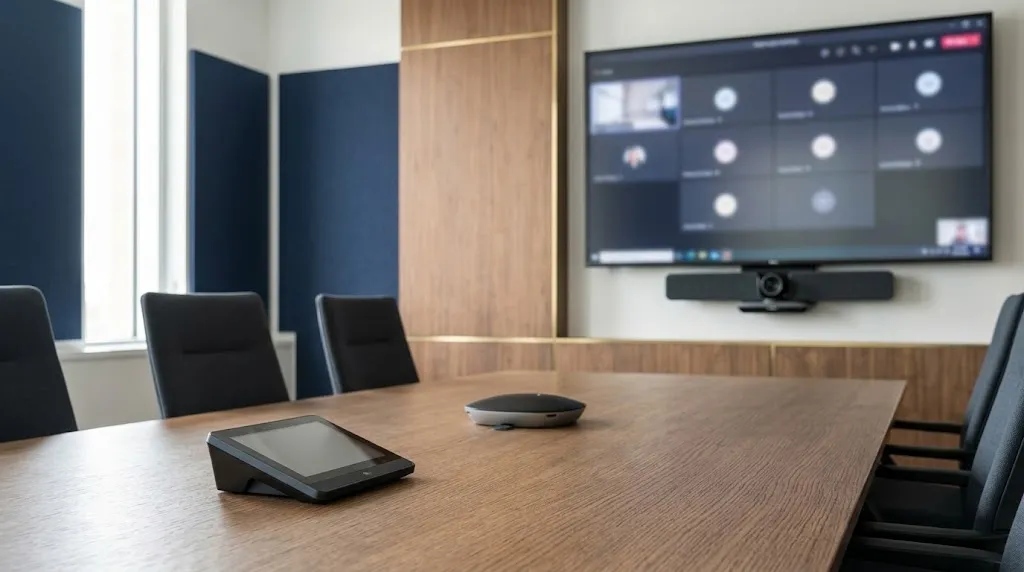
Room size changes the AV design; meeting habits help determine the platform. Neither Teams Rooms nor Zoom Rooms should be selected solely because a space is small or large. Use room types to define repeatable requirements, then validate each design.
| Room or meeting pattern | Design priority | Acceptance test |
|---|---|---|
| Small meeting room | Simple controls and coverage of nearby seats. | Join, speak and share without moving equipment. |
| Medium boardroom | Consistent audio and useful camera views. | Check every seat with a remote listener. |
| Large or divisible space | Audio zones, display visibility and coordinated controls. | Validate each intended room configuration. |
| Frequent client-hosted calls | A documented cross-platform workflow. | Join and present using real external invitations. |
Before standardizing, confirm the dominant meeting platform, calendar integration, essential features, support ownership and complete cost. Pilot a representative room, record the results and resolve gaps before repeating the design.
Planning meeting spaces in Toronto, Mississauga or the GTA? Discuss your room requirements with Smartopia, including existing equipment, typical calls and the experience you want users to have.
Frequently Asked Questions
Can a Microsoft Teams Room join a Zoom meeting?
Yes, on a supported system with third-party joining configured. Direct Guest Join and supported SIP connections have different requirements and capabilities. Confirm content sharing, displays and controls for the intended connection method.
Can a Zoom Room join a Microsoft Teams meeting?
Yes, using supported Teams web-client interoperability or an appropriate SIP/CVI arrangement. Device compatibility, host policies and configuration matter. The web-client experience has limitations, so test presentation sharing and required room functions before relying on it.
Does each meeting room need a separate account or licence?
A Teams Rooms installation needs a dedicated resource account with an appropriate Teams Rooms licence. A production Zoom Room needs appropriate Zoom Rooms licensing and its own room configuration. Plan calendar resources separately from employee accounts, and confirm requirements for associated devices.
Which option works better for a company using Microsoft 365?
Start by evaluating Teams Rooms if most meetings are hosted in Teams. Microsoft 365 alone does not settle the choice: Zoom Rooms also integrates with Office 365 calendars. Compare actual meeting habits, guest requirements, equipment and support needs.

Comments are closed