
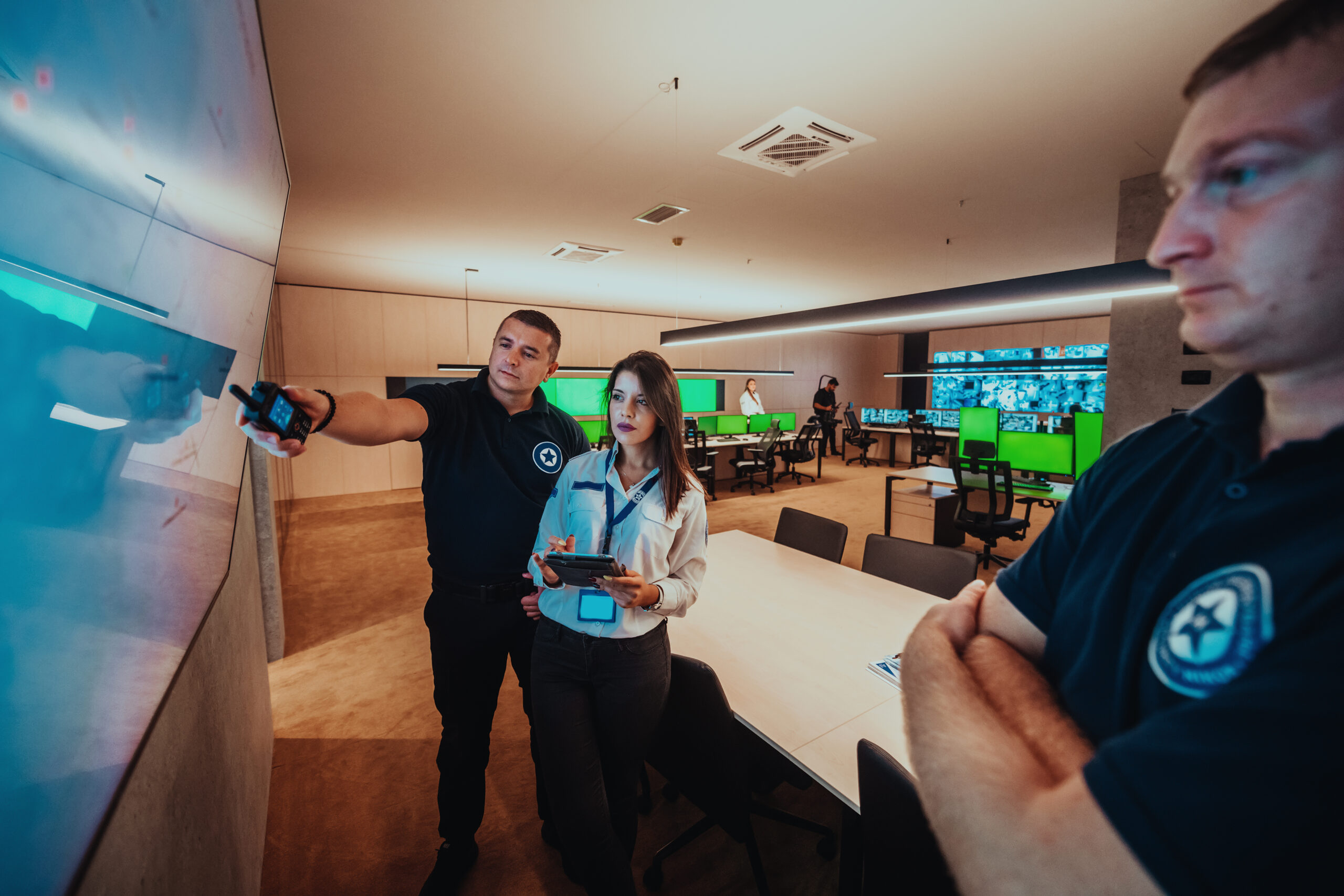
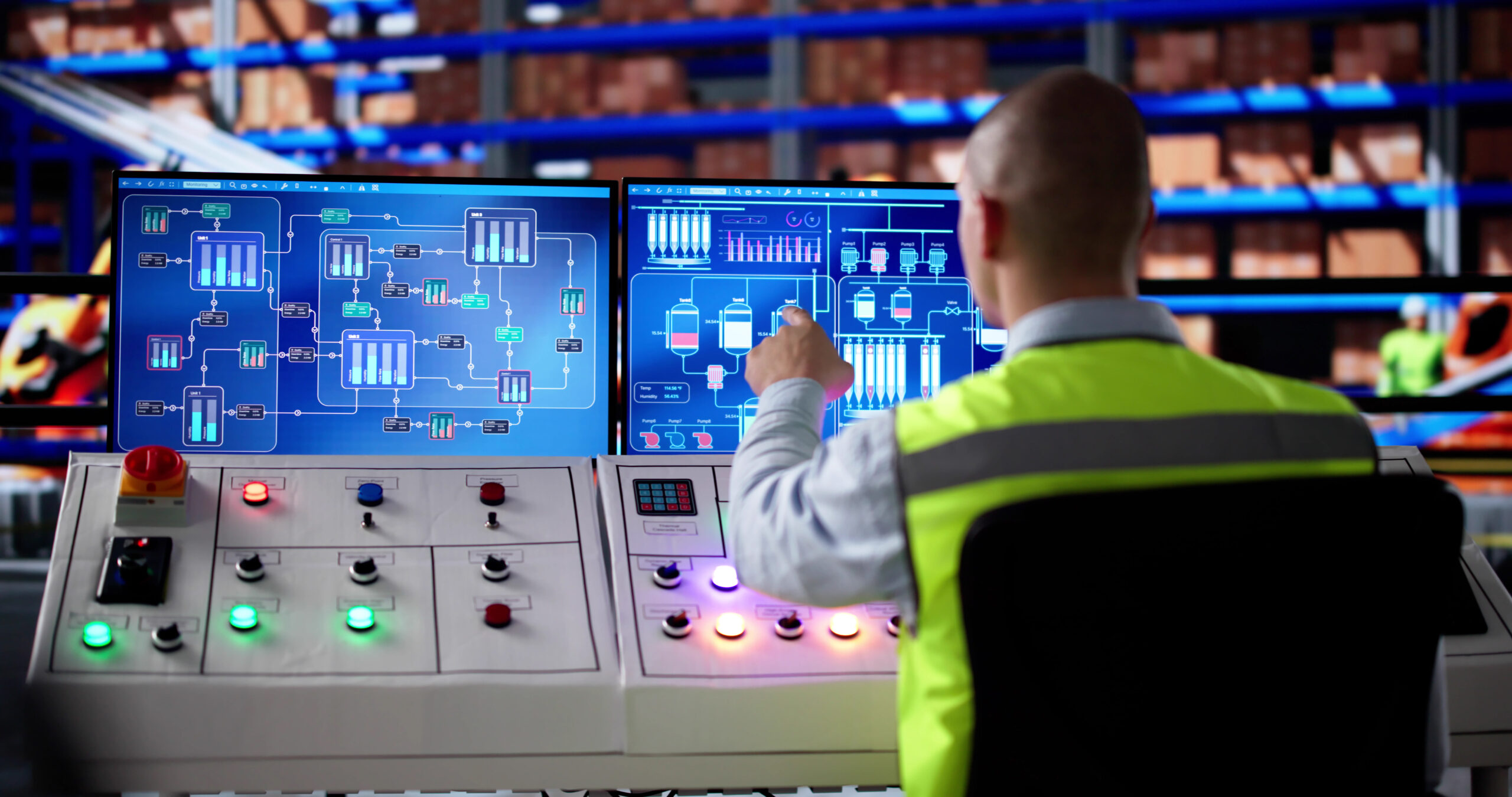
A dashboard can look modern while still making everyday work difficult. If an operator cannot identify the affected equipment, distinguish a live reading from stale data or explain why a schedule has been overridden, the interface needs closer evaluation.
This guide explains nine features to assess when reviewing building automation for facility teams. The focus is day-to-day operation: what staff need to see, what they are allowed to change and how they confirm that an action produced the intended result.
What Makes Building Automation User-Friendly?
User-friendly building automation combines clear information, predictable controls and documented operating procedures. It should help the intended users perform their actual responsibilities without exposing them to unnecessary complexity or inappropriate control functions.
Ease of use should be tested through practical tasks. Ask a facility operator to find a zone, investigate an alarm, review a schedule and identify an active override. Observe where explanations, extra steps or specialist assistance are required.
A simplified interface does not remove the need for training, commissioning or qualified technical support. It should make the boundaries between routine operation and specialist work easier to understand.
1. Organize Dashboards Around Real Facility Tasks
Start with the activities the team performs during a normal shift. These may include checking occupied areas, reviewing equipment faults, responding to comfort complaints and confirming after-hours operation.
The main dashboard should make those activities easy to locate. Detailed engineering information can remain available through an appropriate navigation path instead of competing with every routine task on the opening screen.
- Use building, floor, zone and equipment names consistently.
- Group information according to how the property is operated.
- Keep navigation and control placement consistent between similar screens.
- Use readable text, clear units and meaningful status labels.
- Pair colour indicators with words or symbols so colour is not the only signal.
For example, “Level 3 East Meeting Rooms” may help a general facility operator locate a problem more quickly than an unexplained controller identifier. Retain technical identifiers where needed for maintenance and cross-reference them in the documentation.
2. Make Equipment Status and Data Freshness Clear
A displayed value needs context. Operators should be able to distinguish a measured temperature from its setpoint, a requested equipment state from confirmed operation and a current reading from the last available value.
For user-friendly building automation, review whether the interface identifies:
- The source and units of each important measurement.
- The time of the latest update where relevant.
- Communication loss, unavailable readings or unreliable data.
- Automatic, manual, overridden and out-of-service states.
- The difference between a command being sent and equipment feedback being received.
A green symbol should not suggest normal operation when the associated device has stopped communicating. Agree on how unavailable or stale information will appear and test that behaviour during commissioning.
The available indicators depend on the controllers, sensors and supervisory platform. Confirm which feedback points actually exist before specifying dashboard behaviour.
3. Give Alarms an Owner, Priority and Next Action
An alarm should help someone decide what to do. A message containing only an unfamiliar point name and a timestamp leaves the operator to reconstruct the situation.
Agree on alarm priorities with the people responsible for the building and its equipment. The priority should reflect the consequence and required response, rather than assigning the highest urgency to every abnormal condition.
Where supported, useful alarm information includes:
- The affected equipment and its location.
- The detected condition and when it began.
- The assigned priority and responsible team.
- A reference to the approved investigation or response procedure.
- Acknowledgement, return-to-normal and escalation status.
Acknowledging an alarm is not the same as resolving its cause. The interface and operating procedure should make that distinction clear.
Review repeated or nuisance alarms through a controlled technical process. Avoid hiding a persistent fault simply to reduce the number of notifications. Any suppression, delay or threshold change should have an approved purpose and be documented.
4. Match Permissions to Each User’s Responsibilities
Different users need different levels of access. A contractor investigating one item of equipment may need a narrower view than a facility manager overseeing the property.
Define which roles may view information, acknowledge alarms, adjust approved setpoints, edit schedules or change system configuration. Hiding a button on a dashboard is not a substitute for enforcing permissions within the platform.
Use individual accounts where supported, and agree on how access is approved, reviewed and removed. Administrative functions should be separated from routine tasks where the system allows it.
Permission testing should include checking that a restricted user cannot perform an unauthorized action. Record any platform limitations and the agreed controls for managing them.
5. Make Schedules and Temporary Overrides Understandable
Schedules often become difficult to manage when weekly operating hours, holidays and temporary changes interact. An operator should be able to identify which schedule or approved override is currently determining operation.
A useful scheduling interface shows the affected area, operating period, applicable exceptions and the next expected change.
For temporary overrides, confirm whether the platform can display:
- The authorized user who applied the change.
- The reason and time it was applied.
- The affected equipment or zone.
- An expiry time and the expected return to automatic operation.
Test an illustrative after-hours request: extend operation for a selected area, confirm the permitted change and verify that the temporary arrangement expires as intended.
Override options and permitted adjustment ranges should follow the approved control sequences. Routine dashboard access should not provide a way to bypass equipment protections.
6. Present Trends That Help Staff Investigate Problems
A single reading may not explain a comfort complaint or recurring equipment issue. Historical trends can help operators compare what happened before, during and after the reported event.
Useful trend views may combine a measured value, its setpoint, equipment status and the relevant occupancy schedule. Include readable units, timestamps and a clear time range.
Confirm sampling intervals, retention periods, time synchronization and export requirements. Missing readings should be distinguishable from a stable value.
Analytics or fault-detection features may identify patterns that warrant investigation. They do not establish that a failure will occur or guarantee that maintenance will prevent it. Their usefulness depends on suitable data, configuration and follow-up.
7. Keep Mobile Access Useful and Controlled
Mobile access can help authorized staff review a condition while inspecting equipment. It should provide the information needed for the task without assuming that every desktop function belongs on a phone.
Test screen readability, alarm details, navigation and confirmation of permitted changes on the devices the team will use. Clarify whether an application provides notifications, read-only monitoring, control functions or a combination.
Remote access also needs an approved security arrangement. The Canadian Centre for Cyber Security recommends securing remote access to operational technology and separating IT and OT networks.
Confirm authentication, permissions, session handling and activity records with the responsible IT and controls teams. Making a control interface directly accessible from the internet is not a suitable shortcut to convenience.
Document what remains available locally if a phone, internet connection or remote service becomes unavailable. The answer depends on the installed architecture and should be verified for the property.
8. Verify Integrated Functions Instead of Assuming Compatibility
A shared protocol can support communication between products, but it does not mean every function is available across every device.
For BACnet equipment, the manufacturer’s Protocol Implementation Conformance Statement, or PICS, identifies the implemented capabilities. Product documentation and relevant BTL testing information can support selection, but the required project functions still need verification.
For each integration shown on an operator screen, confirm:
- Which information can be read and which commands are permitted.
- The meaning, units and expected update behaviour of each required point.
- How communication failure is displayed.
- Whether a command produces the expected equipment response.
Modbus and other interfaces also require equipment-specific checks. A label such as “open protocol” does not establish complete interoperability.
For the wider architecture and coordination of several systems, see the guide to centralized control for commercial buildings. This article focuses on how the resulting functions are presented to operators.
9. Include Practical Training and Usability Testing at Handover
Training should use the building’s actual interface and representative tasks. A demonstration by an experienced programmer does not show whether the facility team can operate the completed system independently.
Ask intended users to locate equipment, interpret an alarm, review a trend and make an authorized temporary change. Record where they need assistance and whether the issue involves training, terminology, navigation or missing functionality.
Handover material should identify:
- Routine operating procedures and permitted adjustment limits.
- Alarm responsibilities and escalation contacts.
- Schedule and override procedures.
- Account administration and access-request processes.
- Documentation, backup and technical-support responsibilities.
Agree on refresher training following staff turnover or significant interface changes. There is no universal training duration: the appropriate scope depends on the users, system complexity and their responsibilities.
How to Test User-Friendly Building Automation Before Acceptance
Use an agreed task list with representative users. Record completion, errors and requests for assistance. Define acceptable outcomes for the project rather than assuming a particular dashboard style is easy to use.
| Operator task | What to verify |
|---|---|
| Find an affected zone | The user can locate the area and identify the equipment serving it using consistent names. |
| Interpret a reading | The user can identify the value, units, setpoint and any stale-data or communication warning. |
| Review an alarm | The user can explain the condition, priority, responsible team and approved next action. |
| Change an approved schedule | The user can identify the affected area, review exceptions and confirm the intended change. |
| Apply a temporary override | The authorized user can identify its scope, expiry and expected return to automatic operation. |
| Investigate a complaint | The user can find the relevant historical period and compare the available measurements and equipment states. |
| Use a restricted account | Required tasks are available and prohibited actions are blocked by the platform. |
| Request assistance | The user can find the operating procedure, support contact and information needed to report the issue. |
Repeat relevant tests after significant dashboard changes, software updates or changes to building operation. Keep a record of unresolved issues and the person responsible for addressing each one.
Frequently Asked Questions
What should a facility team see on its main BMS dashboard?
The main dashboard should prioritize the team’s routine responsibilities: affected areas, important equipment states, actionable alarms and relevant schedules. Detailed technical information should remain accessible through a clear navigation structure.
Can an existing building automation system become easier to use?
Potentially. Improvements may include consistent naming, revised graphics, clearer alarms, corrected permissions and better training. The available changes depend on platform capabilities, licences, documentation and access to the existing configuration.
Does acknowledging a BMS alarm clear the underlying fault?
No. Acknowledgement records that the alarm has been recognized according to the platform’s behaviour. Investigating and correcting the cause is a separate process, and the alarm’s return-to-normal status should remain clear.
Do BACnet and Modbus guarantee compatibility?
No. They provide communication frameworks, but available functions depend on the products and their implementations. Confirm the required data points, permitted commands and communication behaviour, then test the intended integration.
Does mobile monitoring mean every building function can be controlled remotely?
No. Remote functions depend on the platform, interfaces, permissions and approved security arrangements. Some users may receive notifications or read-only information while control functions remain restricted.
Does user-friendly building automation eliminate operator training?
No. Operators still need to understand the building, their permissions, alarm procedures and the consequences of permitted changes. Clear interfaces should support that training, with practical task completion used to identify gaps.
Can sensors and predictive analytics prevent every equipment failure?
No. Sensors provide measurements, and analytics may identify patterns requiring investigation. Data quality, system configuration, equipment condition and maintenance follow-up affect the results. No dashboard or analytics feature guarantees failure prevention.
Discuss Building Automation Usability With Smartopia
Before planning changes, list the tasks staff find difficult and collect examples of confusing screens, repeated alarms or unclear schedules. Identify the user roles involved and the outcomes each role needs.
Explore Smartopia’s building management system integration services for assessment, controls integration, dashboards, commissioning and operator-training requirements.
Contact Smartopia to discuss your property, existing platform and the operational tasks your Toronto or GTA facility team needs to perform.
Comments are closed