
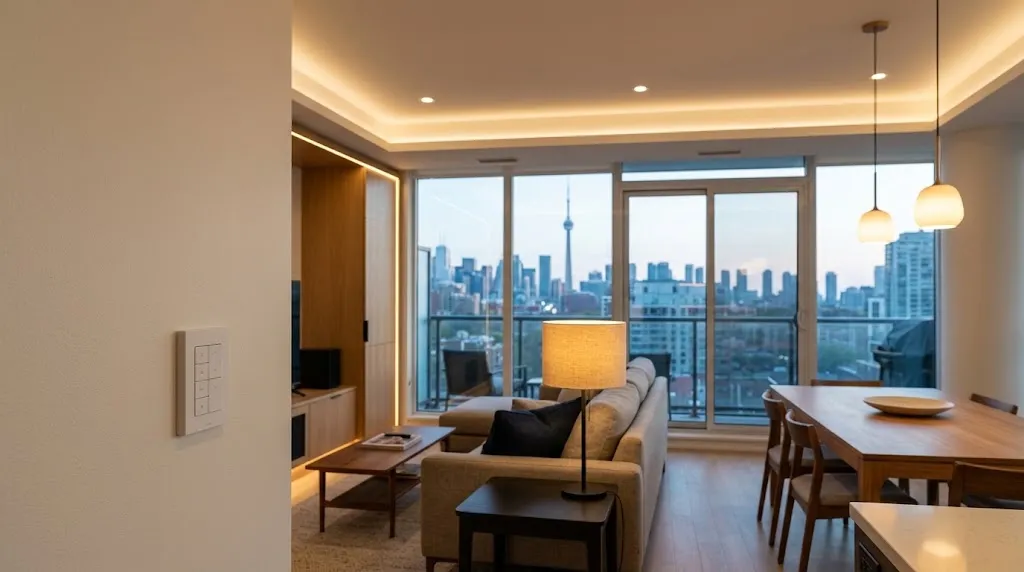
What Makes Smart Lighting Useful in Daily Life?
A lighting scene recalls selected settings across one or more compatible lights. Instead of adjusting several controls individually, you might press a button labelled “Evening” to lower the ceiling lights and turn on a reading lamp. Some systems also support changes to colour temperature or colour, but those features are not necessary for every room.
Begin by separating three jobs: general illumination for moving around, task lighting for a particular activity, and accent lighting that changes the room’s atmosphere. Giving these jobs separate controls makes a scene more useful than simply dimming everything to the same level.
Keep the names obvious: “Cooking,” “Dinner,” “Reading” and “Goodnight.” Guests should be able to find a normal light setting, and household members should have a simple way to override an automation. The app can offer extra options without becoming the only way to use the room.
Entryway and Hallway Lighting Ideas
An entryway scene should make arriving home straightforward. For example, an “Arrival” button could activate the entrance and the route to the kitchen while leaving bedrooms unchanged. In a compact condo, that may involve just two lighting zones rather than a whole-home system.
Use different behaviour after dark. A late arrival might need a lower hallway setting, with brighter illumination available from the wall control. An occupancy or motion trigger can be helpful when carrying groceries, but it should not repeatedly switch the entrance on whenever someone walks past an adjacent room.
A useful starting plan is:
- An arrival scene for the entrance and the next room.
- A separate low-brightness route for late-night movement.
- A clearly labelled control near the door.
- A leaving scene whose scope everyone understands.
Keep a private unit’s lighting separate from shared corridor or lobby controls. Changes to common areas need coordination with the property team.
Kitchen, Living Room and Dining Room Lighting Scenes
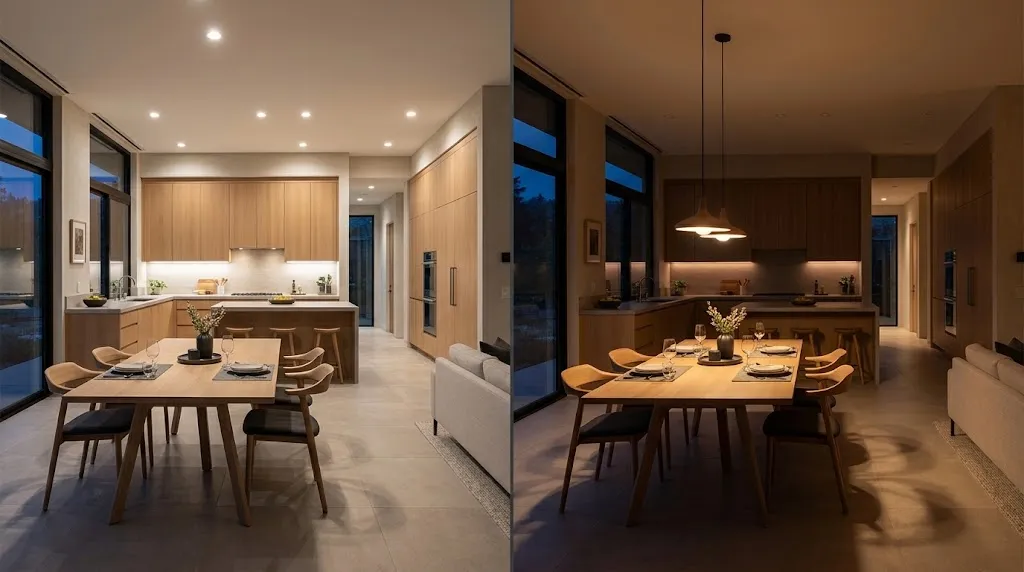
Open-plan homes need more than one lighting mood because cooking, eating, reading and watching television may happen in the same space. Group lights by activity and location, so changing the dining area does not remove the light another person needs at the kitchen counter.
| Scene | Lighting approach | What to check |
|---|---|---|
| Cooking | Use suitable counter lighting and comfortable general illumination. | Check shadows on the preparation surface. |
| Dinner | Make the table the focus and lower surrounding lights as appropriate. | Keep enough light for serving and moving around. |
| Reading | Prioritize the lamp beside the occupied seat. | Allow individual adjustment without changing the entire room. |
| Movie | Reduce distracting reflections and use a comfortable background setting. | Keep the route out of the room easy to illuminate. |
Treat these as starting points rather than fixed brightness percentages. The same dimmer setting can look very different with different lamps, finishes and room layouts. Test scenes from the positions where people actually sit and work.
If the room includes a media system, coordinate the lighting with the screen and controls during planning. Smartopia’s home theatre installation guide explains the wider room-design considerations.
Bedroom and Night-Time Pathway Lighting
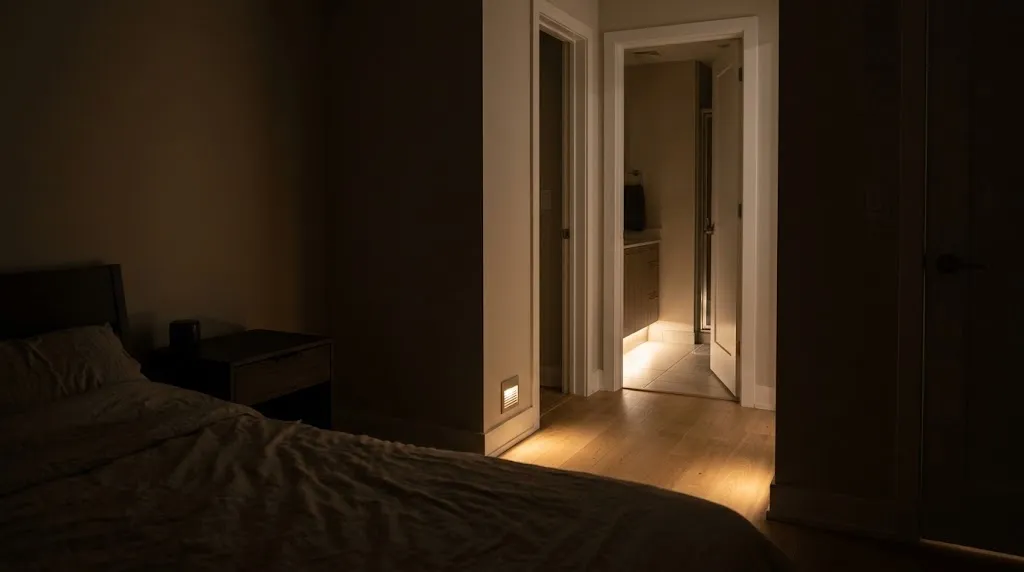
Bedroom controls should work independently for each person. A bedside lamp or reading zone can stay on while the rest of the room is dimmed. Place an everyday control where it can be reached comfortably, rather than relying entirely on a phone or voice command.
For night-time movement, consider a low-level path between the bed, doorway and bathroom. Aim the light where people walk, and check it from bed so it does not shine directly at someone resting. Warm-looking light may suit the room’s atmosphere, but the practical test is whether the route is clear without unnecessary brightness.
A “Goodnight” scene should have a defined scope. It might turn off selected room lights while leaving a reading lamp under individual control. If a sensor activates the pathway, confirm its detection area and timeout so normal movement in bed does not repeatedly trigger the scene.
Lighting Ideas for Working From Home
A work scene can combine a desk lamp with balanced room lighting. Position the desk light to suit the task, then check the computer screen for reflections. For video calls, try a soft light in front of the user rather than a strong source directly behind them.
Keep the work area separately adjustable from the rest of the home. Someone should be able to continue working while another person selects an evening scene in the living area.
Be careful with short motion-sensor timeouts at a desk: typing or reading may involve little movement. If automatic shutoff is used, test it during a real working session and retain a clear manual override. Daylight controls also need to reflect the brightness at the working surface, not just beside a window.
Motion Sensors, Schedules and Daylight-Based Control
These controls solve different problems. A motion sensor responds to detected movement, a schedule acts at a programmed time, and daylight-based control responds to measured light levels. Combining them can be useful, provided the rules do not compete.
For a hallway, a possible rule is: activate a suitable scene when movement is detected and the area is dark enough, then return to the chosen background state after an appropriate timeout. Configure separate daytime and night-time behaviour if the system supports it.
For example, Philips Hue’s motion sensor documentation describes adjustable daylight thresholds, time-based lighting behaviour and actions after movement has stopped. Those features depend on the required Hue setup; they should not be assumed for every sensor.
Test the less obvious situations: someone sitting still, a pet crossing the room, a door left open, or a light that was adjusted manually. Agree on what takes priority when a person changes a setting. Adjust one rule at a time so unexpected behaviour is easier to trace.
Combining Lighting With Motorized Shades
Lighting and shades can share a scene when their systems support the necessary integration. A presentation or movie scene might move selected shades and adjust the room lights together. A daytime work scene could use a different shade position to reduce screen reflections while keeping useful daylight.
Check compatibility before buying equipment. Sharing a voice assistant or appearing in the same app does not, by itself, establish which coordinated functions are available. Confirm the supported gateway, controller or integration and which settings it can actually recall.
Also decide how manual changes should behave. If someone adjusts a shade, the next scheduled event should not immediately undo that choice without an agreed reason. Test the scene from the occupied seats, keep individual shade and light controls available, and choose names that describe the activity rather than the technology.
Smart Lighting Options for Existing Homes and Condos
Existing properties can often be improved in stages. Start with the room that causes the most inconvenience, confirm the control method works for the household, and then expand where the benefits are clear.
| Option | Potential use | Planning consideration |
|---|---|---|
| Smart bulbs | Adding control to compatible fittings or individual lamps. | Confirm supply requirements and the intended wall-control arrangement. |
| Plug-in lighting controls | Controlling suitable table or floor lamps. | Check the permitted load and whether the device switches or dims. |
| In-wall smart controls | Operating compatible existing lighting circuits. | Assess wiring, neutral requirements, lamp or driver compatibility and installation work. |
| Coordinated room controls | Combining several lighting zones with supported shades or AV equipment. | Confirm controller requirements, supported integrations and handover documentation. |
Local control and app features are not always the same thing. Lutron’s Caséta programming overview, for example, distinguishes standalone device and Pico remote operation from the additional app, scheduling and integration features available with its hub.
For smart-bulb setups, plan how the wall switch will be used. Cutting the bulb’s supply can remove its ability to respond to smart commands. Philips Hue’s wall-control guidance explains the distinction between controlling smart lights and interrupting their power. Confirm the arrangement for the selected products rather than assuming an existing dimmer is suitable.
Have fixed wiring and control compatibility assessed before specifying an in-wall replacement. Coordinate with the landlord or property team where their approval or involvement is needed, particularly for common areas. Keep a record of device models, room names and scene settings so later changes do not depend on guesswork.
How to Keep Essential Lights Easy to Use During an Outage
An internet outage and a power outage require different plans. Local controls may remain usable when the internet fails, provided the lighting and required equipment still have power. Ordinary mains-powered lights will not illuminate during a power cut just because they are smart.
For an internet failure, identify which controls work locally and which depend on online services. As one example, Lutron explains that Caséta devices communicate locally using Clear Connect rather than relying on home Wi-Fi for that communication. Other products and integrations may behave differently.
For an actual power cut, keep independent lighting available. The Canadian Red Cross recommends accessible flashlights with working batteries. A battery-powered remote does not supply power to the lights it controls, and backing up a router or lighting hub alone does not energize the home’s lighting circuits.
Plan around these checks:
- Keep essential everyday controls understandable without an app.
- Make independent battery lighting easy to find.
- Identify which equipment needs power for each control method.
- Confirm what the selected products do when power returns.
If fixed lighting needs backup power, have the required loads and installation assessed professionally. Convenience scenes are not a substitute for a building’s emergency-lighting arrangements.
Frequently Asked Questions
Do smart lights require a whole-home automation system?
No. Depending on the products, you can start with individual bulbs, compatible plug-in controls or a small lighting system. A hub or wider automation platform may be needed for particular scenes, schedules or integrations. Check those requirements before choosing the equipment.
Can smart lighting be added without rewiring the entire home?
Often, yes. Compatible bulbs and plug-in lighting controls can offer a starting point without replacing the home’s fixed wiring. In-wall controls still need a wiring and load-compatibility assessment. The suitable approach depends on the existing installation, the rooms involved and any applicable property requirements.
What happens to smart lighting when the internet stops working?
It depends on how the system communicates. Supported local buttons, remotes and locally processed controls may continue working while power remains available. Remote access, cloud-dependent routines or voice services may be affected. Confirm the behaviour of the selected system rather than assuming every smart light works offline.
Which lighting scenes are most useful in a condo?
Arrival, cooking, dining, reading, movie and goodnight scenes are useful starting points. A low-level night-time pathway can also help. Choose scenes around the condo’s actual layout, keep task lighting separately adjustable and make sure everyday controls remain obvious to guests.
Start with a few smart home lighting ideas that address recurring frustrations, then test them during normal daily routines. For a broader condo or multi-residential project in Toronto and the GTA, explore Smartopia’s residential technology solutions or discuss your lighting and integration requirements with the team.
Comments are closed